


ChillingMuppet
Members
-
Joined
-
Last visited
Everything posted by ChillingMuppet
-
 I've not tested with 0.41 but I don't see any reason why it wouldn't. The plugin is quite basic in its operation atm.
 -
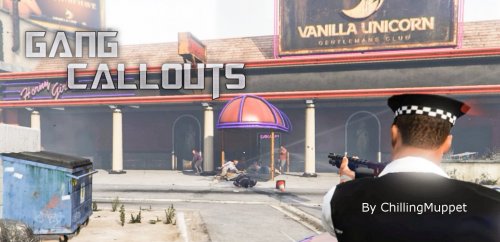
Gang Callouts The gangs of LS are trying to take over the city. Fight back with the power of law enforcement. This plugin contains LSPDFR callouts that involve gangs. Expect multiple suspects who may not be best pleased to see the cops turn up to ruin their day. VIDEO COMING SOON! This version contains two callouts: Requirements: A legal copy of GTA V RAGE PluginHook 0.45 LSPDFR 0.3.1 Install: Place "GangCallouts.dll" into your Plugins\LSPDFR folder GangCallouts will load automatically when you go On Duty. Known Issues: Some users have reported a crash or incompatibility when calling for backup. I'm currently investigating this issue. This is my first plugin and it is still an early version so please expect issues. If you come across any bugs or have a suggestion please leave them in the comments section.
-
Thankyou @khorio, don't know why I didn't see that
-
How do I refer to the player when coding to make a ped hostile? I am using: myPed.Tasks.FireWeaponAt() What do I then need to put into the brackets? Thanks

