


sxrrano24
Members
-
Joined
-
Last visited
Everything posted by sxrrano24
-
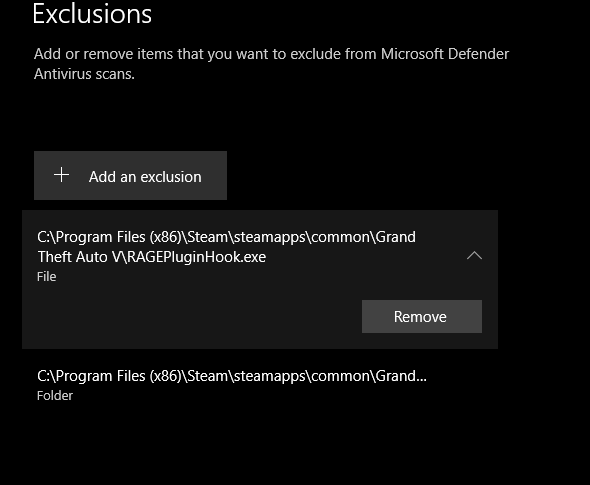
Yeah, should I try turning off real time protection to see if it's still my PC somehow blocking it even with the exclusions? Idk. I don't really have a lot of important stuff on my PC so here soon I might just do a factory reset lol, idk why it's giving me so much trouble

-
No I don't, I am not seeing anything in apps
-
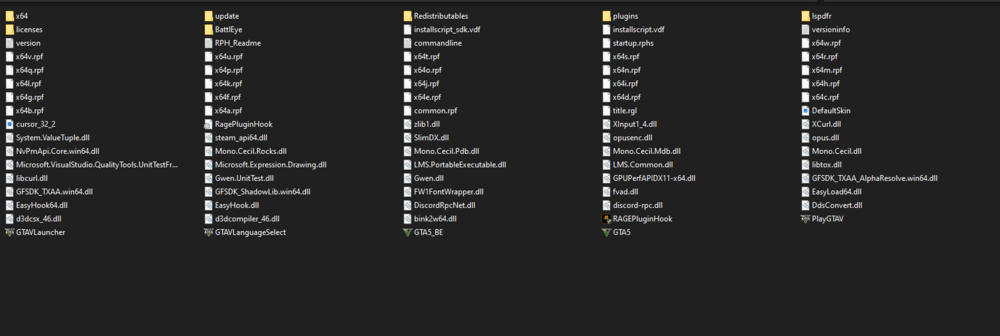
Still no luck, no log file created either. And I have put -log into the commandline.txt file, I am unsure what is going on and am pretty frustrated. I even tried a clean install of GTA
-
Yes
-
I did that yesterday, and I just now launched through rage, got stuck again on "Launching game via steam" and nothing happened. I still do not see the log file

-
I used to have LSPDFR years ago, I play FiveM and never play normal GTA. I recently decided to try to download it again because I found a car pack I liked and it's not working. I click the RPH to launch and it will sit there and say either "Launching game" or "Launching game via steam" and it will launch GTA V and when I load in it does nothing. I've been for 2 days trying to AI it and walk through steps but cannot seem to figure it out. I do not see any ragepluginhook log files etc. So in short: Game launches fine, RPH stays on "Launching via steam" or "launching game" and I load in normally with no f4 console or anything.


