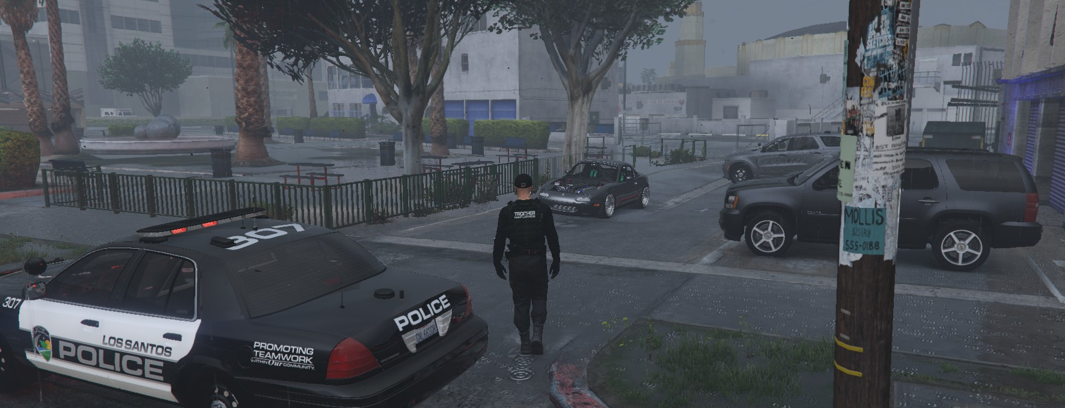
Over the past few years of running and observing various emergency response communities, one of the biggest friction points for agency heads (Chiefs, Sheriffs, Directors) always seems to be administrative overhead. Too many leaders spend 80% of their time manually editing Google Sheets, auditing shift hours, and managing badge numbers, leaving almost no time for actual command, tactical sub-divisions, or unit development. A few questions for those who have held executive command roles or manage structured groups: Automation vs. Manual Logs: Have you moved toward custom web portals/SSO setups for duty logging (10-8/10-42) and automated weekly hour caps, or do you still prefer traditional logs? Agency Autonomy: Do you prefer total SOP freedom where each department head builds their own internal rank structure, EUP/uniform mandates, and disciplinary policies, or a rigid top-down ruleset? Badge Allocation: How do you structure badge series (e.g., 100s for State, 200s for City, 300s for County, 400s for Fire) to keep CAD clean across multiple jurisdictions? Curious to hear how other command-minded folks handle administrative burnout, or what systems you’ve seen work best. Drop your thoughts below.