Curgane
Members
-
Joined
-
Last visited
Everything posted by Curgane
-
Hi, I uninstalled everything—even the registry entries, so there wasn't a trace of GTA left—then reinstalled it, and it works!!! Thanks for your help, and sorry for wasting your time!!
-
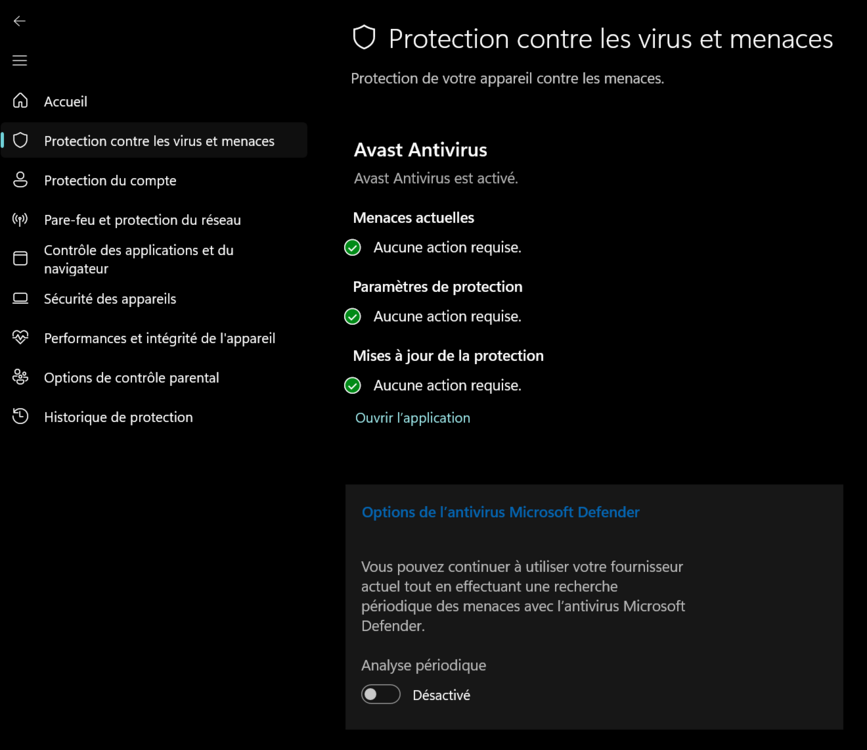
I don't have access to the settings in Windows Security because it detects that Avast is taking over that function, and I do have an exception set up in Avast for the entire directory. I just ran a test with all Avast agents disabled; same result.
-
The firewall is managed by Avast, so I added an exception for the entire directory. The graphics card is a 2080 Ti. The result is the same; I even ran a test with my firewall completely disabled.
-
Same here—still no access to the console or the LSPDFR menu; I only have the statistics.
-
GTA V Enhanced Sry Should I open one in the other channel, or can you move it?
-
Hello, I installed the mod exactly as the tutorial describes, but when I launch RAGE, the game starts up fine—yet once I'm in-game, I can't access the character creation screen. Also, the F6 key set for the console isn't working (I tried F4 before, with the same result). I'm using the Enhanced Preview version. Thanks for your help! P.S. Sorry for my English; I'm using Google Translate.