


WERY54
Members
-
Joined
-
Last visited
Everything posted by WERY54
-
Fixed it. Thanks, my game runs with no crashes.
-
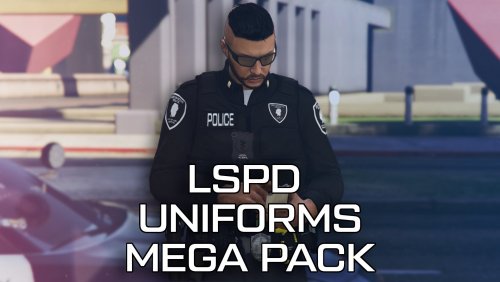 You drag it into eup_componentpeds_p.rpf and NOT into any of the mp folders. Your welcome (:
- 131 comments
- 5 reviews
-
Running latest LSPDFR. Getting a consistent crash when multiple plugins are active simultaneously. Exception: UNHANDLED EXCEPTION DURING GAME FIBER TICK Origin: Game fiber "<UNNAMED THREAD>" Exception type: System.Exception Exception message: Processing cache while it's still in use - one or more subcalls may have caused the thread to yield Stack trace: at CPedCache.cs:line 45 at Main.cs:line 69 at LSPDFR.cs:line 861 at Rage.GameFiber.Main() [FATAL] Forced termination Active plugins at time of crash: UltimateBackup, StopThePed, GrammarPolice, PatrolSuite, NPCI (Gemini), BlueLine Scanner, CalloutInterface, 686Callouts, UnitedCallouts, TAGsCallouts What was happening before crash: NPCI Gemini was actively making WebSocket connections and receiving audio, UltimateBackup had multiple active units, and GrammarPolice traffic control was running simultaneously. Crash consistently occurs during heavy concurrent plugin activity after roughly 20-30 minutes of gameplay. Log timestamp: [6/28/2026 1:28:49 AM] RagePluginHook_27062026_210720.log

