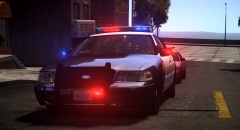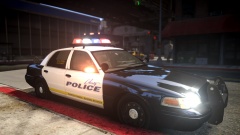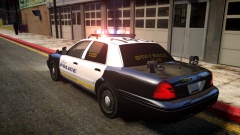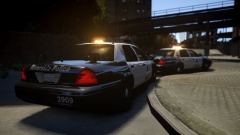

BErad1502
Members
-
Joined
-
Last visited
Everything posted by BErad1502
-
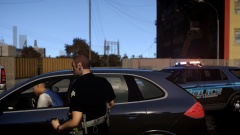
From the album: ON PATROL
I dont have all day pal....License and Registration -
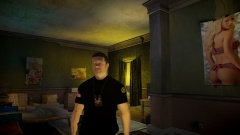
From the album: ON PATROL
-
-
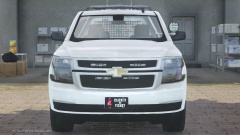 awwwww F*** Yeah
 -
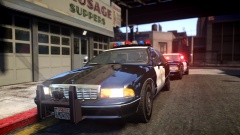
From the album: Random pics
models can be found here https://www.lcpdfr.com/files/file/6582-chp-classic-caprice-police-pack-els-v8/ -
-
-
-
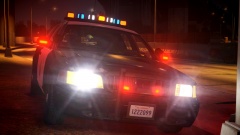
From the album: Random pics
just a random shot at the rollover but i thought it looked to great to not post. -
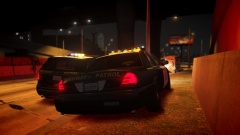
From the album: Random pics
Alcohol is suspected to be involved -
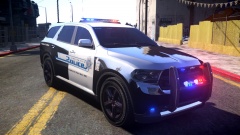
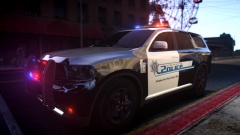
From the album: possible new ideas
Skin is based on San Bernidino Police Dept. -
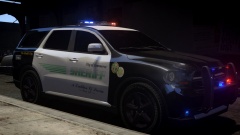
From the album: possible new ideas
Skin is based on San Bernidino Police Dept. -
From the album: possible new ideas
LASD City of Commerce Style Skin -
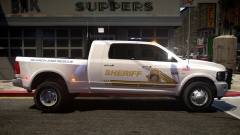
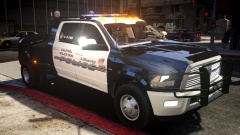 i might release a pack just for the truck like i did with the explorer pack
 -
 Thanks Brother
 -
Its not released. but you can find the Base model on another site. GTAMC
-
Thanks for the replies. i have unistalled and deleted traces of it from my comp. i re downloaded it but i still have the same issue. not sure why its only the vehicle image that isnt working. iv been importing exporting peds but still cant access vehicles. thank you all for the responses.
-
From the album: helping others
i only made the Skins. -
From the album: helping others
i only made the Skins. -
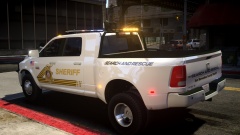
From the album: helping others
i only made the Skins. -
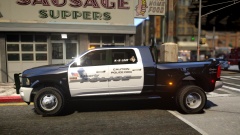
From the album: helping others
i only made the Skins. -
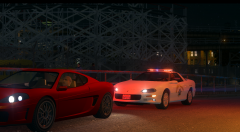 Soon I Hope....
 -
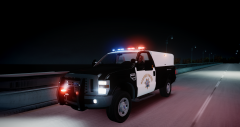 This looks amazing i hope the new one gets released. Any update on your camaro?
 -
So i have yet again run into an issue regarding open IV after yet another update. i can open the program and can modify everything except when in comes to the vehicles. every time i try to navigate through the vehicles it just stops responding. i can go through all other folders inside the cdi images but vehicles absolutely does not work. has anyone been experiencing this issue since the update to 2.2.0? gta4 still runs fine and SPARK IV is now my primary until this issue can be resolved. if anyone knows how to fix please post. -BErad1502
-
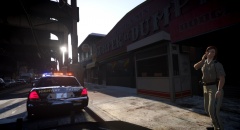
From the album: chp style cars
That moment you realize the dash cam is on and you have been picking your nose for 3 minutes