


Deputy Katya
Members
-
Joined
-
Last visited
Everything posted by Deputy Katya
-
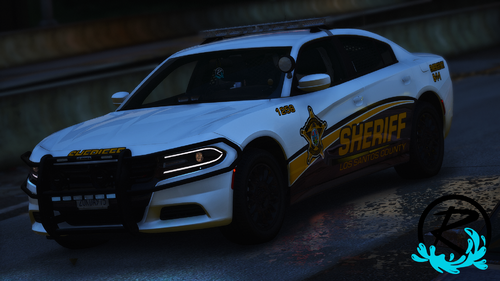 Dear Manufacturer, We love your vehicles so much that we not only use them for Sheriff's Office, but we've reskinned them for the LSPD and SAHP. As such, the LEOs of San Andreas have had plenty time to use your vehicles. While largely positive, they have some frustrations. Each vehicle has its own unique quality issue. When using the Dodge Charger, Officers report that the large antenna on the trunk has anomalous qualities, as opening the trunk will result in the large antenna staying exactly where it is, hovering over the open trunk. When using the Ford Explorer (FPIU), Officers report that, when they open their trunk and pull out the storage shelf, it goes so far that it floats in the air after severing the officer in half. When using the Crown Vic, Officers report that the takedown lights do not work. They do, however, note a circular spotlight underneath the car, coming from seemingly no source. Officers have played around with buttons and have looked for a manual somewhere informing them how to direct this light, but found nothing. Each one of these problems doesn't exist in all other vehicles. Which means if you were to take the FPIU and Charger's takedowns, the CVPI's rear antenna, and the CVPI & Charger's storage shelf into every vehicle, it would be perfect and of consistent quality. Signed, This comment was the only reason I made an account here, San Andreas Gov't
- 73 comments
- 22 reviews
