


SirColonelLongnuts
Members
-
Joined
-
Last visited
Everything posted by SirColonelLongnuts
-
Figured it would be some convoluted ultimatum either way, thanks.
-
As the title says, RAGE is being blocked by windows smart app control. I read the recent discussion where this is happening to another guy for troubleshooting but no change. Rage and it's dll. are added in exception through quarantine and unblocked within the properties menu. Restarted PC with defender RTP off, defender trusted signature only off, and re-download LSPDFR manual to make sure no missing files. Ran rage as administrator. It is still getting flagged by Smart App control and not defender alone, the only feasible way of bypass seems to be completely removing Smart App Control from the device. I am not going to be able to do that on this device as it requires a full windows reinstall to turn it back on. In my past experience, it will need to be updated again to where it no longer triggers smart app control. There is no real way to add any kind proper exception to smart control once it decides a file is malicious, outside of fully disabling the system. Any help is appreciated!
-
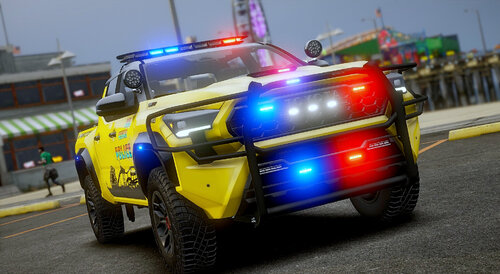 One of the best, if not the best pack for quickly getting into an immersive patrol. I honestly just want to see even more livery expansions on these vehicles.
- 367 comments
- 31 reviews
-
-

- 1
-
