Netrick
Members
-
Joined
-
Last visited
Everything posted by Netrick
-
Thanks for the help, the flashing lights started working.
-
I did not install Gameconfig, but I reinstalled and rebooted ASI loader on my PC and it did not help.
-
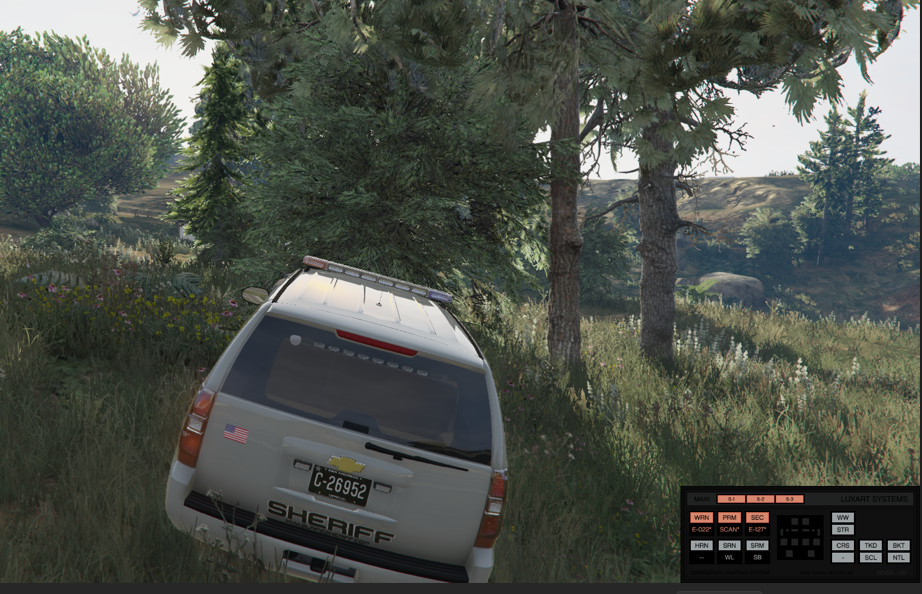
The car looks fine without any problems. Is there a problem with the files?
-
Yes, I did everything as written in the readme.
-
Unfortunately, I won't be able to record the video because I deleted lspdfr again. The problem is that the flashing lights are not glowing, although the taillights are flashing. Here are the links: https://www.lcpdfr.com/downloads/gta5mods/vehiclemodels/26852-els-blaine-county-sheriffs-office-pack/ https://www.lcpdfr.com/downloads/gta5mods/vehiclemodels/17911-los-santos-police-department-mega-pack-els/ https://www.lcpdfr.com/downloads/gta5mods/vehiclemodels/22059-els-blaine-county-sheriff-pack/ https://www.lcpdfr.com/downloads/gta5mods/vehiclemodels/16583-els-bcso-vehicle-pack/
-
The els menu is working, but the flashing lights are not. I tried to install different packages of cars, but the lights did not appear, the graphics settings are medium and high.
-
 People, please help me solve this problem. The els menu is working, but the flashing lights are not. I tried to install different packages of cars, but the lights did not appear, the graphics settings are medium and high.
- 2,699 comments
- 240 reviews
-
Hello everyone, there is a problem. The els menu is working, but the flashing lights are not. I tried to install different packages of machines, but the lights did not appear, the graphics settings are medium and high.
- 2,699 comments
- 240 reviews