
Mauzix
Members
-
Joined
Everything posted by Mauzix
-
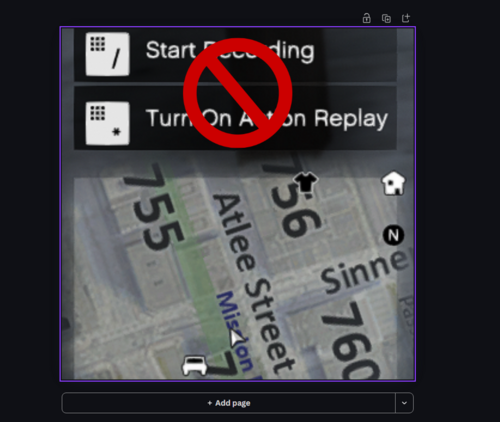 It should work with yours. I haven't tested it on that exact build, but if you do try it let me know if it works. Hey, I tried getting it to work with controller but haven't figured it out yet the recording shortcut works differently on the controller than on the keyboard and I couldn't disable it without breaking other stuff like menu navigation. Maybe if I get it to work I will update and reply to your comment letting you know.
- 12 comments
- 1 review
-
-
I believe it should as it blocks the game action itself rather than the keybind, but be sure to let me know. I didn't actually test it with a controller. 😀 I know the feeling! 😄 I hope it works well for you. Let me know if you run into any issues.
- 12 comments
- 1 review
-
Disables GTA V's Rockstar Recording and Action Replay controls, preventing accidental recordings even when recording keys have been rebound. Features • Disables Rockstar Recording Controls. • Disables Action Replay Controls. • Works with Rebound Recording Keys. • Lightweight ScriptHookVDotNet3 Plugin. • No Configuration Required. Requirements • Grand Theft Auto V • Script Hook V • ScriptHookVDotNet3 Installation Copy DisableRockstarReplay.dll to the Grand Theft Auto V\scripts folder. Version v1.0.1
- 12 comments
- 1 review