
J T
Members
-
Joined
-
Last visited
Everything posted by J T
-
-
-
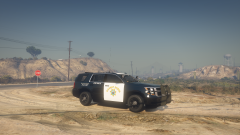
From the album: SAHP
-
-
-
-
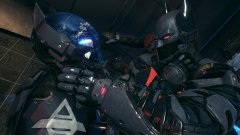 eye for an eye.jpg
-
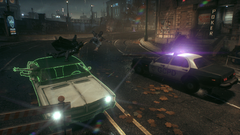 heads up.png
-
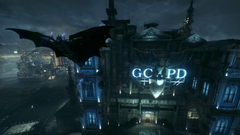 leaving the station.png
-
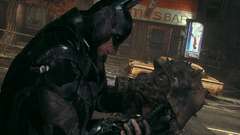 swear to me.png
-
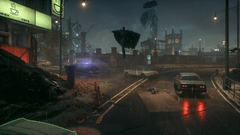 the bat.png
-
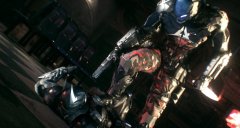 gotcha old man
-
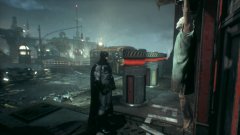 investigating a murder
-
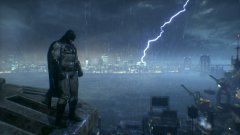 dark knight returns
-
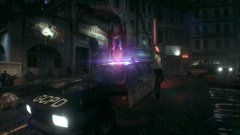 watching
-
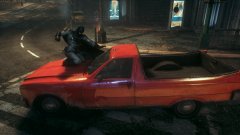 heads up
-
 dark knight returns
-
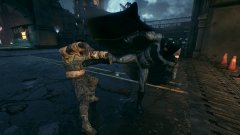 you will
-
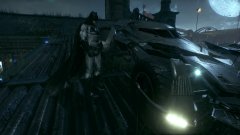 do you bleed?
-
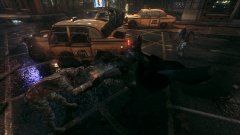 go time
-
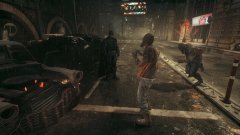 you wana go?
-
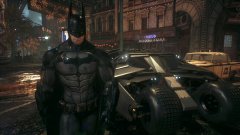 a little pisst
-
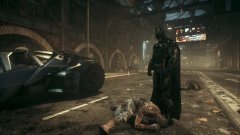 bad night for you
-
 light em up.jpg
-
 no hockey pads here.jpg
-
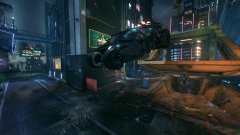 flying on rooftops.jpg
-
-
-
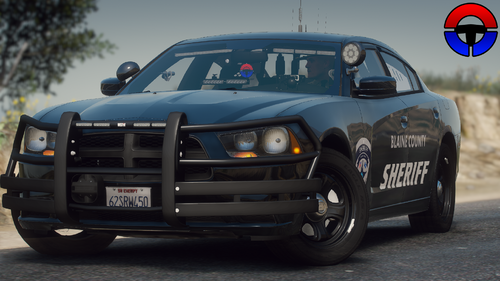 you could have an optional rambar version instead of extras
 -
if only they had a rambar option instead of a wrap around
-
-
From the album: ghost recon wildlands
-
-
From the album: ghost recon breakpoint
-
-
the pull over shift key doesnt work....will that be addressed?
-
having this same issue, wonder if anyone has a fix
-
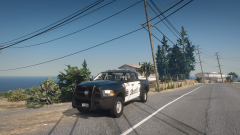
From the album: paleto bay sheriff (ventura county)
-
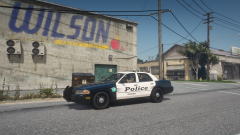
From the album: paleto bay sheriff (ventura county)
-
-
-
-
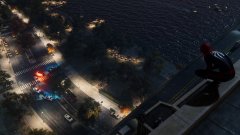
From the album: spider man
-
-
-