blackbyrd
Members
-
Joined
-
Last visited
Everything posted by blackbyrd
-
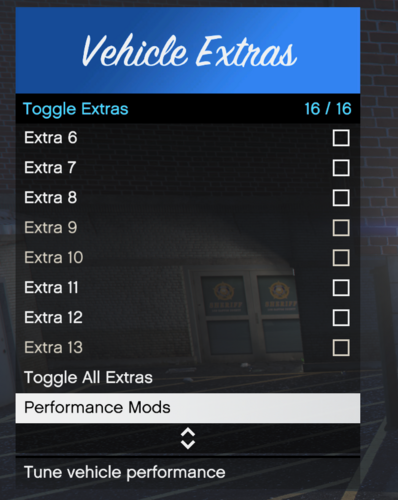 # VehicleExtras Plugin for GTA V **Author:** blackbyrd **Version:** 1.1.1 **Description:** This plugin adds an in-game menu to toggle vehicle extras and performance modifications in Grand Theft Auto V. Perfect for customizing vehicles in real-time without needing a full trainer. ** Depends on RAGEPlugin Hook, will not function without ** --- ## What's Included Inside `VehicleExtras.zip` you'll find: plugins\VehicleExtras.dll plugins\VehicleExtras.pdb plugins\VehicleExtras.ini RAGENativeUI.dll (if you don't already have RAGENativeUI installed) RAGENativeUI.xml (if you don't already have RAGENativeUI installed) README.txt --- ## Installation Instructions 1. **Extract the ZIP** Unzip `VehicleExtras.zip` anywhere convenient. 2. **Locate Your GTA V Installation Folder** Example path (Default): C:\Program Files\Rockstar Games\Grand Theft Auto V\ 3. **Copy Plugin Files** Copy the contents of the `/plugins/` folder from the ZIP into your GTA V `plugins` directory: C:\Program Files\Rockstar Games\Grand Theft Auto V\plugins 4: **Copy RAGENativeUI** (if needed) Copy "RAGENativeUI.dll" and "RAGENativeUI.xml" to your GTA V directory: C:\Program Files\Rockstar Games\Grand Theft Auto V\ --- ## How to Use -Edit the keybind in VehicleExtras.ini (if desired) (https://learn.microsoft.com/en-us/dotnet/api/system.windows.forms.keys?view=windowsdesktop-9.0&redirectedfrom=MSDN) -Edit your plugin load order through the RAGEPluginHook Settings menu, OR edit "startup.rphs" inside your GTA V directory and add: LoadPlugin "VehicleExtras.dll" -Optionally, you can simply load the plugin through the RAGEPluginHook Console: Press F4 in-game (default console keybind) Type in the console: LoadPlugin VehicleExtras.dll ### In-Game Menu - Press `F10` to open the **Vehicle Extras** menu. - Toggle individual extras using checkboxes. - Use the **Toggle All Extras** button to enable/disable all at once. > Note: Some extras may require the vehicle to be repaired or reloaded to reappear. Additionally, sometimes when you disable an extra, it may require a supporting extra to be re-enabled first, then disabled, such as Extras 1 and 2 for the COQUETTE hard top. ##GITHUB Repository https://github.com/blackbyrd84/VehicleExtras ##CHANGELOG v1.0.0 - First Release v1.0.1 - Corrected default keybind ini v1.0.2 - Restructured zip layout + updated Readme.txt v1.1.0 - Added Vehicle Performance Modification submenu - Added options to modify vehicle performance (Engine, Brakes, Transmission, Turbo) - Updated Readme.txt with new features v1.1.1 - Removed console commands -Updated Readme.txt to reflect changes
 -
-
 Good work so far! Enjoying the feature updates. I checked and wasn't able to find a keybind or a way in the MDT or in the on-foot menu to seize/impound/tow a vehicle with the latest update. Am I missing something?
- 202 comments
- 3 reviews