


gamerboy55311
Members
-
Joined
-
Last visited
Everything posted by gamerboy55311
-
.thumb.png.75c93a6122f392c5578eb7f30e724543.png) Immediately after putting all the files in my game, when trying to save vehicles.meta i get, XML syntax. XML Parsing error at line 34802, col 5: End tag 'InitDatas' does not match the start tag 'Item'. which is this line of code: </InitDatas> (line 34802) <txdRelationships> (line 34803) Now my game just opens then straight away closes.
Immediately after putting all the files in my game, when trying to save vehicles.meta i get, XML syntax. XML Parsing error at line 34802, col 5: End tag 'InitDatas' does not match the start tag 'Item'. which is this line of code: </InitDatas> (line 34802) <txdRelationships> (line 34803) Now my game just opens then straight away closes. -
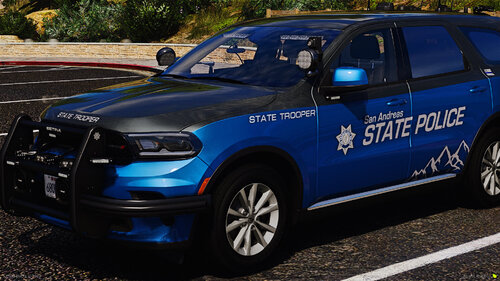 Amazing, I love how the vehicles look, but some of the FPIU's Need their headlights fixed as they are showing outside of the vehicle floating and some ELS issues but the ELS issues aren't too noticeable so that's fine. They handle nicely, look great, I like how when you spawn one it has a chance to vary between marked and unmarked or lightbar and no lightbar too, have been using them for about 5-6 days now and no issues, no crashing. Overall minor issues with headlights on FPIU's and ELS issues but they are not too bad so great pack. I recommend it! I think you should use this pack a lot, I love this pack and its great, cars handle nicely and vehicles look amazing but you right on that. Also FPIU's have some issues with headlights
 -
 when I press Y to accept a callout, some don't start any nothing happens, and the hostage situation callout starts and instantly ends. any reason why or update?
- 635 comments
- 53 reviews
-
-

- 1
-
.thumb.png.75c93a6122f392c5578eb7f30e724543.png)
