


Insert Display Name Here
Members
-
Joined
-
Last visited
Everything posted by Insert Display Name Here
-
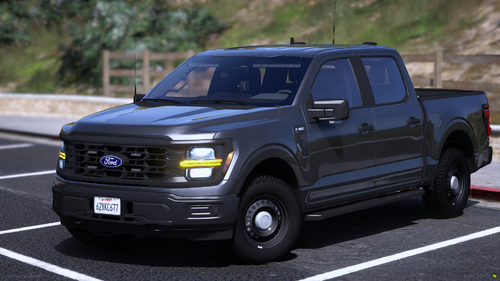 I found the fix. I am super explaining for those who are unfamiliar with changing these things. 1. Go into OpenIV 2. Go to your DLC placement folder (Grand Theft Auto V\mods\update\x64\dlcpacks) 3. Find carvariations.meta (25f150pr\dlc.rpf\data) 4. Hit "Edit mode" on the top right of the Open IV program. 5. Right click on carvariations.meta and click "Edit". 6. Go to line 186 which should say <sirenSettings value="0" /> 7. Change the value to 1 which should look like this after you are done <sirenSettings value="1" /> 8. Hit "Save" at the bottom right. 9. Close OpenIV and you are done. I found the fix. I am super explaining for those who are unfamiliar with changing these things. 1. Go into OpenIV 2. Go to your DLC placement folder (Grand Theft Auto V\mods\update\x64\dlcpacks) 3. Find carvariations.meta (25f150pr\dlc.rpf\data) 4. Hit "Edit mode" on the top right of the Open IV program. 5. Right click on carvariations.meta and click "Edit". 6. Go to line 186 which should say <sirenSettings value="0" /> 7. Change the value to 1 which should look like this after you are done <sirenSettings value="1" /> 8. Hit "Save" at the bottom right. 9. Close OpenIV and you are done. I found the fix. I am super explaining for those who are unfamiliar with changing these things. 1. Go into OpenIV 2. Go to your DLC placement folder (Grand Theft Auto V\mods\update\x64\dlcpacks) 3. Find carvariations.meta (25f150pr\dlc.rpf\data) 4. Hit "Edit mode" on the top right of the Open IV program. 5. Right click on carvariations.meta and click "Edit". 6. Go to line 186 which should say <sirenSettings value="0" /> 7. Change the value to 1 which should look like this after you are done <sirenSettings value="1" /> 8. Hit "Save" at the bottom right. 9. Close OpenIV and you are done. I found the fix. I am super explaining for those who are unfamiliar with changing these things. 1. Go into OpenIV 2. Go to your DLC placement folder (Grand Theft Auto V\mods\update\x64\dlcpacks) 3. Find carvariations.meta (25f150pr\dlc.rpf\data) 4. Hit "Edit mode" on the top right of the Open IV program. 5. Right click on carvariations.meta and click "Edit". 6. Go to line 186 which should say <sirenSettings value="0" /> 7. Change the value to 1 which should look like this after you are done <sirenSettings value="1" /> 8. Hit "Save" at the bottom right. 9. Close OpenIV and you are done. I found the fix. I am super explaining for those who are unfamiliar with changing these things. 1. Go into OpenIV 2. Go to your DLC placement folder (Grand Theft Auto V\mods\update\x64\dlcpacks) 3. Find carvariations.meta (25f150pr\dlc.rpf\data) 4. Hit "Edit mode" on the top right of the Open IV program. 5. Right click on carvariations.meta and click "Edit". 6. Go to line 186 which should say <sirenSettings value="0" /> 7. Change the value to 1 which should look like this after you are done <sirenSettings value="1" /> 8. Hit "Save" at the bottom right. 9. Close OpenIV and you are done.
 -
When starting RPH everything loads as normal until the GTA V game window pops up (to start) and then RPH throws an error. The game will load into its normal mode (not the Start with RPH version). I am also able to play the non RPH version just fine. I have found that there is a work around where I close the game and start over which has been working and everything will work perfect. This happens every I start my PC (the first game load of the day). I also haven’t installed any new items which would contribute to this error.
