
alien.007
Members
-
Joined
-
Last visited
Everything posted by alien.007
-
-
 The plugin currently has two languages, Spanish and English. Which language would you like to see added?
- 17 comments
- 1 review
-
Before it was just a crappy message now you have the PDA of the ice and you have the facial scan as they do in real life
- 17 comments
- 1 review
-
-
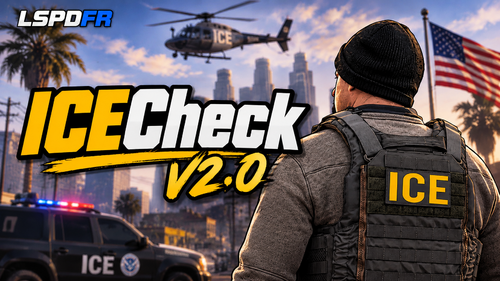
Take out your phone, scan a pedestrian’s face and check their legal status. Irregular pedestrians may run and start a real pursuit. Features On-screen phone with a “Mobile Fortify” style design. Phone and photo animation. Face scan showing the real pedestrian’s face. Results: compliant, expired, no documents or forged. Only irregular pedestrians flee. English and Spanish language. Everything configurable from the .ini. Requirements: GTA V, Rage Plugin Hook and LSPDFR. Installation Copy the 3 files from the folder (ICECheck.dll, ICECheck.ini and ICECheck.pdb) to: GTA V\Plugins\LSPDFR\ Usage Face a pedestrian within 4 m, on foot. Press H to open the phone. Click Facial Recognition or press ENTER. Close with H or Backspace. Language In ICECheck.ini, under [General]: Idioma=es (Spanish) or Idioma=en (English). Configuration: the .ini lets you change the key, distance, scan time, result probabilities and flee chance.
- 17 comments
- 1 review
-
-

-

-

- 4
-