


Nazlash
Members
-
Joined
-
Last visited
Everything posted by Nazlash
-
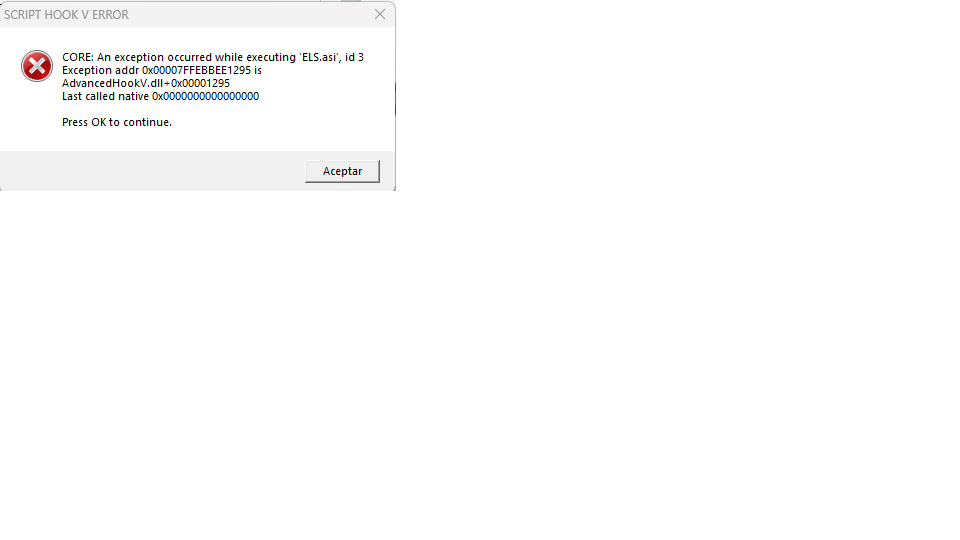
Hello, this is the mistake that gives me, try reinstalling the files and does not work either. The files you use are these: https://www.lcpdfr.com/downloads/gta5ms/scripts/13865-emerncy-Lighting-system/ Advancedhookv_B3258.zip Els V1.05.rar --------------------------------------------------- Script Hook v https://www.dev-c.com/gtav/scripthook/ --------------------------------------------------- Script Hook V dot net https://github.com/scripthokvdotnet/scripthokvdotnet/releases Scripthokvdotnet.zip
-
When version 3570.0 came out, I had the Epic Games update running automatically. This caused my GTA to update from version 3521.0 to version 3570.0. I had a backup copy of the base game on another disk, unmodified from version 3521.0. The problem I'm having is that I deleted the folder that had GTA Version 3570.0 and cloned the folder that had the old version. Now I downloaded the new version of LSPDFR and installed it. It shows that I have GTA version 3521.0. However, Epic Games shows me that the game is on version 3570.0. I checked the game files and it doesn't work. It still shows that I'm on the latest version of GTA. I don't know if anyone has had this happen to them or knows how to fix it. Thanks in advance.
