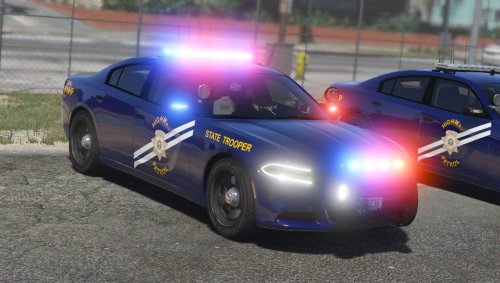
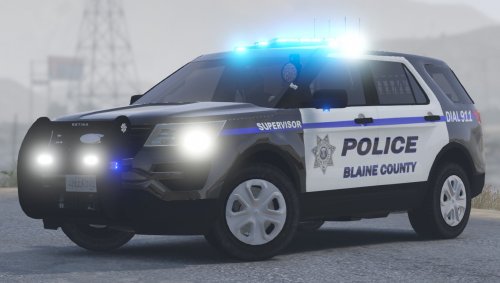
.jpg.7a2f3be38a6ca7f89c88fd3baeda6f53.jpg)
.jpg.11bd4f80f381955803fdcc7856606c51.jpg)
LVMPDFAN
Members
-
Joined
-
Last visited
Everything posted by LVMPDFAN
-
 its not his charger lol
 -
-
 "Bro." That's a old version of the car
 -
My Tahoe is in my game currently. I've made mostly all of metros vehicles so don't say "where's your Tahoe"
-
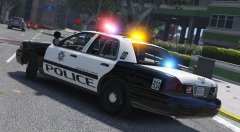 The vehicles will not have all the equipment that normal LVMPD cars have
 -
I see multiple material errors on both the cvpi and Tahoe. Also just by looking at the tahoe I can see multiple inaccuracies
-
Glad you like it! The car will be updated soon with caronas and better flash patterns!
-
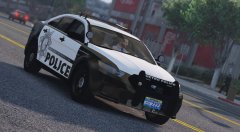 Lol, i do make some of them
 -
Lol, get me perms and I will
-
-
Lol, I did.
-
If you're modeling a vehicle you should look for yourself and do all the research you can. You obviously don't. You have not even looked a photo probably. If you're gonna make my city's department at lease make it right.
-
Vehicle is very inaccurate.. For one i can see that your interior is far from accurate, the light bar is far from accurate as well. As well as your rambar speaker is under scaled and you a few material errors. I'm also seeing inaccuracies with the skin. Also your rambar lights are completely wrong and you have the wrong siren speakers
-
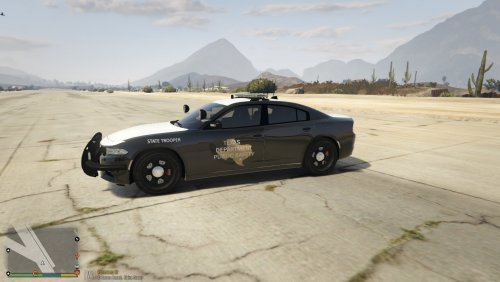 As xbox said this skin has a lot of flaws and in my opinion should not has been released as a Texas DPS skin but instead a SADPS car. The skin is not accurate and could you a few tweaks.
- 2 comments
- 2 reviews
-
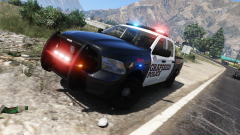
From the album: Future Releases
This vehicle is loosely modeled after the Elizibeth Traffic Dodge Ram. I am hoping for a release within this week or next week. This vehicle does have lightbar ALPR's from @Thehurk which make that vehicle that much better. -
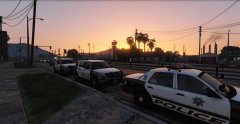 They're coming soon! Sorry read that wrong
 -
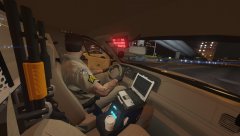 It's just easier for everyone to have it released all at once
 -
I am the maker of the infamous LVMPD pack and this is version 6 of the Crown Victoria. I hope once ELS is released I will be remaking the whole metro pack and a mega release will occur. Yes I am working on modeling parts for the FPIU so it might take a little longer
-
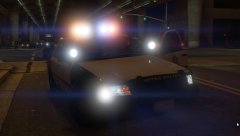 yeah i can't create a new album so this album will have to do lol In the future yes
 -
Yup my whole life!
-
Thank you! I've lived in Vegas my whole life so i've set out to make the most accurate metro cars.
-
Thank you!
-
From the album: Future Releases
-
From the album: Future Releases
Yes i'm aware that's a CHP uniform. This vehicle has a few bugs that have to be worked out and the laptop screen will be lighting up on final release. Stay tuned for more updates! -
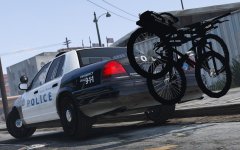 I'd lighten up the bike rack a little bit. But other than that I love the car!
.jpg.11bd4f80f381955803fdcc7856606c51.thumb.jpg.b853c1d89c9be2887485010d9ff29aa8.jpg)