



OfficerTina
Members
-
Joined
-
Last visited
Everything posted by OfficerTina
-
 SO cool! Really digging this so far. These cameras fit nicely into my little patrol routine! The animations are an especially nice touch. My only request is I'd love to lower the beep volume by just a hair!
- 292 comments
- 28 reviews
-
From the album: Sergeant Tak
Friends call her Tak. -
An image dump for all of Sergeant Takahashi's adventures across Los Santos and Blaine County!
-
From the album: Sergeant Tak
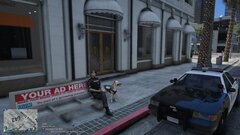
Spending an afternoon with my ALPR -
From the album: Sergeant Tak
Waiting on a call, enjoying the sunny weather! -
.thumb.png.656f907bc2febc81911b0b821cb502c8.png) That makes sense! That's why I'm excited to try it on Steam Deck's desktop mode, I have a feeling it's going to work well, especially with the touchscreen features.
That makes sense! That's why I'm excited to try it on Steam Deck's desktop mode, I have a feeling it's going to work well, especially with the touchscreen features.- 351 comments
- 45 reviews
-
This is incredible! Following, and looking forward to the future of this mod. 😄 Personally, I'd love an iOS/iPad-compatible version! Gonna experiment with it on Steam Deck later tonight. 🤔
- 351 comments
- 45 reviews
-
 Thanks! Between these and the loading screens, I love having a matching set! Cheers! 😃
 -
 I've been looking for some custom loading screens! These work great! 😄 Honestly, I'd love access to the red/blue filter as a template. I'd love to throw my screenshots in the mix and have them match!
 -
Photo dump for my 2nd LSPDFR character, Barry Bartlett. Officer Barry? PD Bartlett? Pick your poison.

.thumb.png.656f907bc2febc81911b0b821cb502c8.png)

