Cartres
Members
-
Joined
-
Last visited
Everything posted by Cartres
-
-
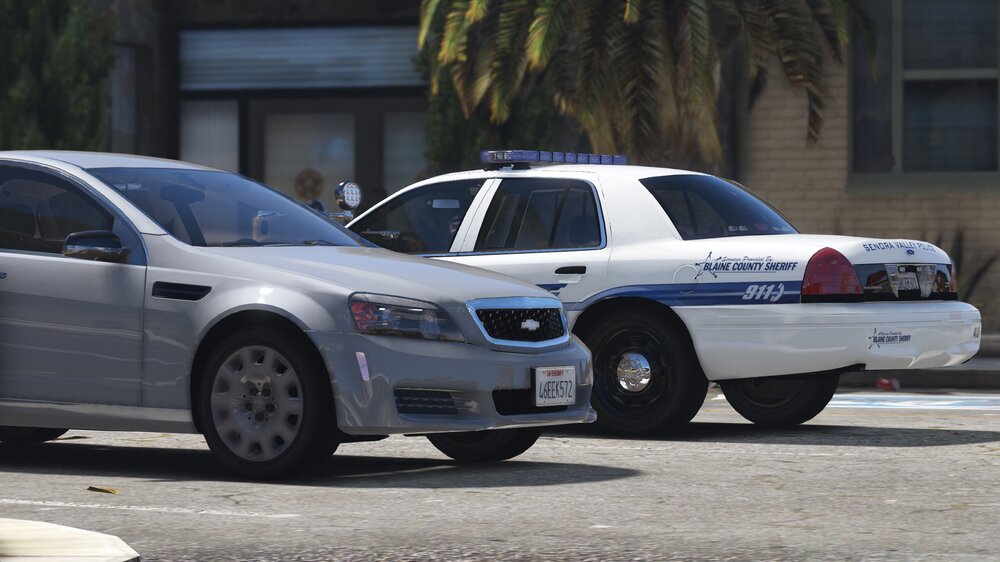
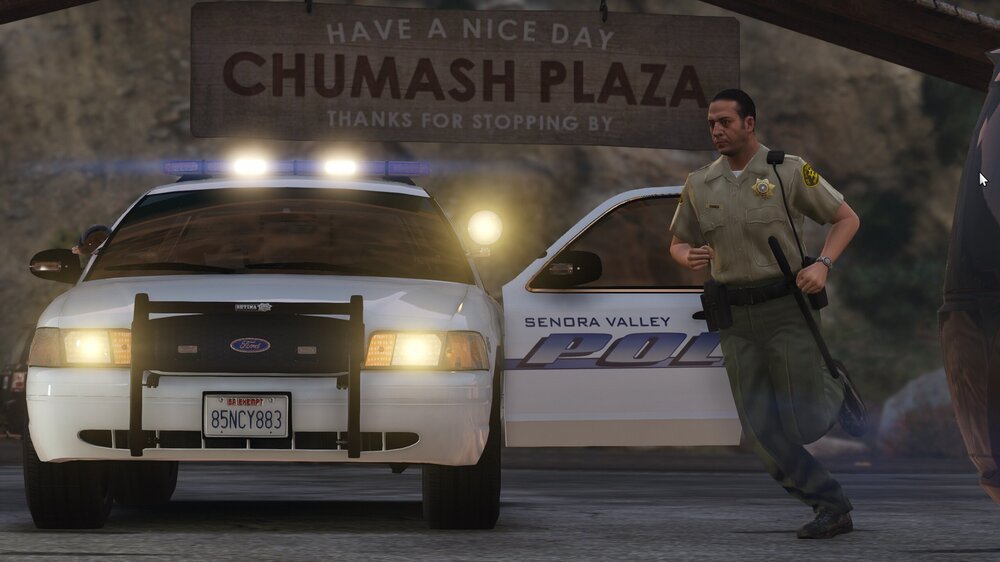
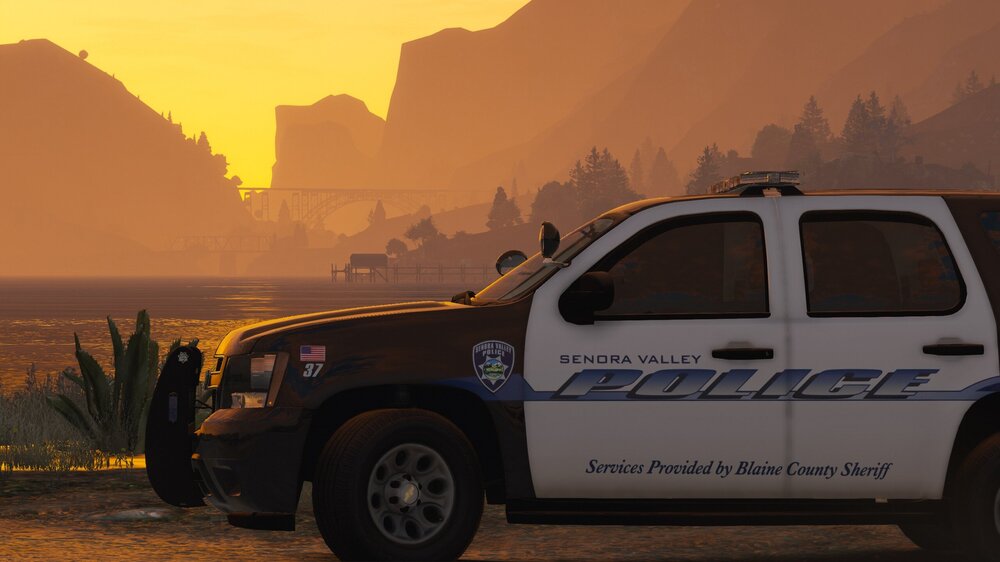
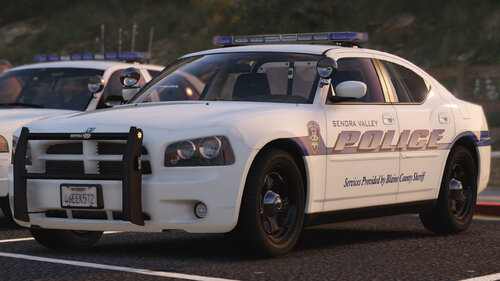 SENORA VALLEY POLICE DEPARTMENT 1.0 By Cartres A fictional law enforcement department for LSPDFR and GTA V. OVERVIEW: The Senora Valley Police Department is a law enforcement agency staffed and managed by the Blaine County Sheriff's Office, and is responsible for all law enforcement responsibilities in the greater Senora region. This includes, but is not limited to, Harmony, Grapeseed, Sandy Shores, Zancudo and Mount Vinewood region (near the Vineyards). While this department is fictional, the vehicles are designed to adhere to Massachusetts State Law, and the skins (designed by Getinmybelly) are based off of Dupont Police. This department is designed to appear like many less wealthy departments across the United States, wherein older vehicles are used for longer periods of time with recycled parts. As such, the lighting on these vehicles is dated with colored lenses and fewer surface-mounted lights across the vehicles. Players looking for 'Christmas Trees' using the newest equipment should look elsewhere. Please read the credits for a full outline of not only the parts I used, but the people that helped me get here. ELS & Non-ELS Hybrid It is true that this pack utilizes ELS and Non-ELS to create magnificent and beautiful lighting effects in the environment, as well as to enable more variety with the flash patterns. By default, the Non-ELS lights are set to activate on Light-Stage 2, but this can be modified in the VCFs if you wish. Modifying the metas or names of these vehicles can cause the non-ELS lights to malfunction, leaving most of the lights either dysfunctional or totally inoperable. THIS PACK INCLUDES: SHERIFF: 2008 Ford Crown Victoria Police Interceptor with Whelen Liberty I, Halogen Takedowns SHERIFF2: 2014 Chevrolet Tahoe Police with Whelen Liberty I, LED Takedowns BCPD4: 2010 Dodge Charger Pursuit with Whelen Liberty I, LED High-Intensity Takedowns PLANNED UPDATES: - Bug fixes as necessary. KNOWN ISSUES: - None Disclaimer: I am still learning, and I am by no means perfect. I welcome all feedback, bug reports, and issues with the files. Please understand that while I will attempt to help anyone that has difficulties installing these vehicles, I cannot control your PC, and I cannot always promise a fix. I offer no support to those who attempt to modify the files. FAQs: Q: How do I activate the takedowns and the spotlights? A: Spotlights are tied to the highbeams, takedowns are tied to ELS. Q: Can these be used in different vehicle slots? A: Yes, but please read the readme carefully for instructions. Q: Can you modify this pack to include red and blue lighting? A: Under no circumstances will I be including a red/blue option for this pack. Q: What permissions do I have for this pack? A: You can use it for single-player until your heart is content, but under no circumstances can you use this pack for FiveM. Q: May I have access to the templates to change the liveries? A: You can find the templates for these vehicles in Underwood's DEV Downloads for the Tahoe and Crown Victoria. FEATURED BY POLECAT324 AND FIRST30MINUTES https://youtu.be/6lW_hGSQG-U
- 39 comments
- 16 reviews
-
-

- 26
-
-
From the album: Senora Valley Police
-
A Massachusetts-Based Fictional Sheriff/Police Department that will be responsible for much of the Senora Desert, including Harmony, Grapeseed, and Sandy Shores.
-
From the album: Senora Valley Police
-
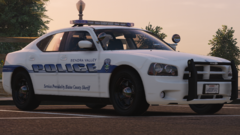
From the album: Senora Valley Police
-
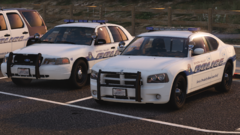
From the album: Senora Valley Police
-
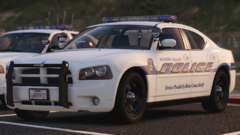
From the album: Senora Valley Police
-
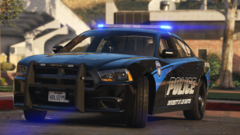 Still in progress.
 -
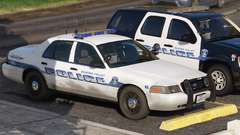
From the album: Senora Valley Police
-
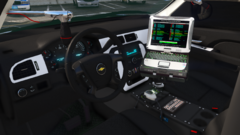
From the album: Senora Valley Police
-
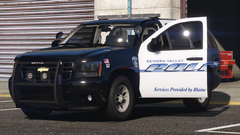
From the album: Senora Valley Police
-
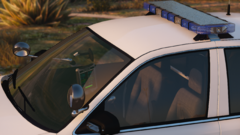
From the album: Senora Valley Police
-
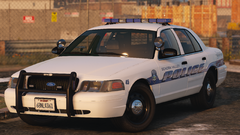
From the album: Senora Valley Police
-
-
-
-
-
-
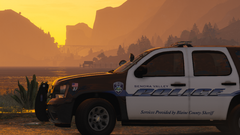
From the album: Senora Valley Police
-
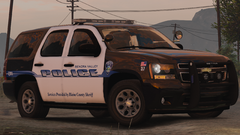
From the album: Senora Valley Police
-
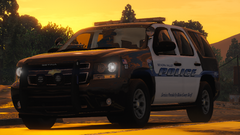
From the album: Senora Valley Police
-
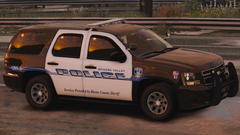
From the album: Senora Valley Police
-
Senora Valley Police Upcoming Release for Sheriff and Sheriff2
-