
PixelPilot
Members
-
Joined
-
Last visited
Everything posted by PixelPilot
-
 Those files are for regular gta vehicles that is what all vehicles use. Those vehshare ytds are what gta uses for their vehicles. That is also what all my vehicles use. Not only the vehshare files but the volfire ytd as well. The vehshare ytds are for like the gauges, wheels, etc. That happens on every vehicle when you open them up in openiv. It is not corrupt due to just uploading it to lcpdfr. If it is corrupt it sounds like an issue that your having. This is the only complaint I have seen with that. you could try redownloading them and trying the original files, to see if that fixes it.
 -
It's pending should be uploaded soon
-
-
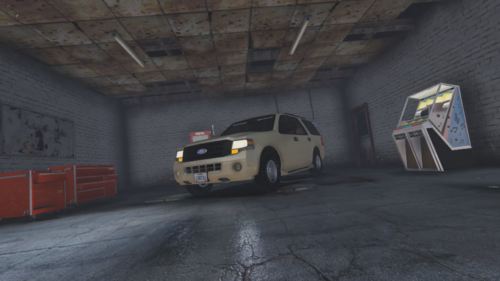 I made this because I don't think I've seen free volunteer vehicles so here you go. Thank you. I give credit where it's due. If you notice any bugs let me know so I can fix it. There will be more to come. Join the discord to get updated ----------------------------------- Extra 1: Federal Signal Spectralux ILS Extra 2: Federal Signal CN SignalMaster Extra 3: Whelen Ions Extra 5: Trunk Accessories
 -
Just Added a Green Version of it
-
Yea I can make it green I'll post it later today!
-
I made this because I don't think I've seen free volunteer vehicles so here you go. Thank you. I give credit where it's due. If you notice any bugs let me know so I can fix it. There will be more to come. Join the discord to get updated ----------------------------------- Extra 1: Federal Signal Spectralux ILS Extra 2: Federal Signal CN SignalMaster Extra 3: STL Super Take Down Ceptor Striker Extra 4: Running Lights Extra 5: Trunk Accessories