YeetyLawson
Members
-
Joined
-
Last visited
Everything posted by YeetyLawson
-
-
 Sorry for the late response, I haven't really been on LSPDFR/LCPDFR in a while, slowly drifting away. But the only reason it was named that was during testing, and I just forgot to rename it, but I'll try to rename it.
- 20 comments
- 2 reviews
-
-
-
Probably not any time soon but i'll see It's already in development, but I'm running into issues with it, but I'll try to get it out as soon as possible 👍
- 20 comments
- 2 reviews
-
-
-
Haven't seen anyone else do this before, so I decided to do it. It took a few hours, though, but I got it working.
- 20 comments
- 2 reviews
-
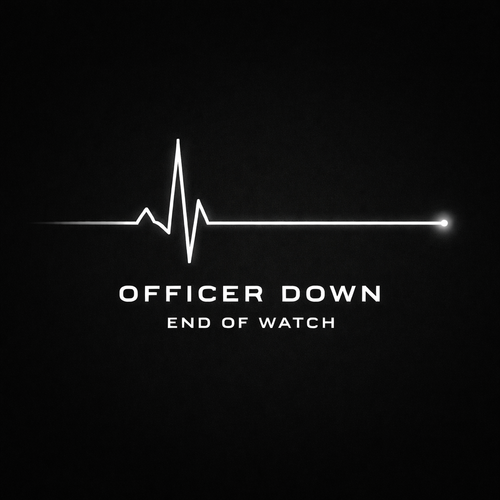
"End Of Watch" Replaces your WASTED screen with pure black for more realism. Also, this is my first LSPDFR plugin, so it may not be perfect. How to install: Just drag and drop into your Grand Theft Auto V Main Directory. Showcase Video: End Of Watch Plugin I LSPDFR SHOWCASE NO LONGER UNDER DEVELOPMENT
- 20 comments
- 2 reviews
-
-

- 7
-
-