CiananMc19
Members
-
Joined
-
Last visited
Everything posted by CiananMc19
-
I have been attempting to replace the base police / sheriff vehicles in the game for obviously better ones, they will not work. Ill try and spawn the vehicle I added and it would still spawn the base model. Im not sure if its my openIV that is the issue, my open IV patchdays go from patchday2, then goes to patchday3, then skips to patchday24 and patchday25. Not sure if that is the issue as I have seen others have alot more patchdays than me, but I have tried installing them on each patchday to see if that would work and did not. Ive tried different videos but none successful, and couldnt find any forms relating to the same issue, not sure if this is the right place to ask but any help appreciated.
-
This indeed worked, thank you.
-
RagePluginHook.log
-
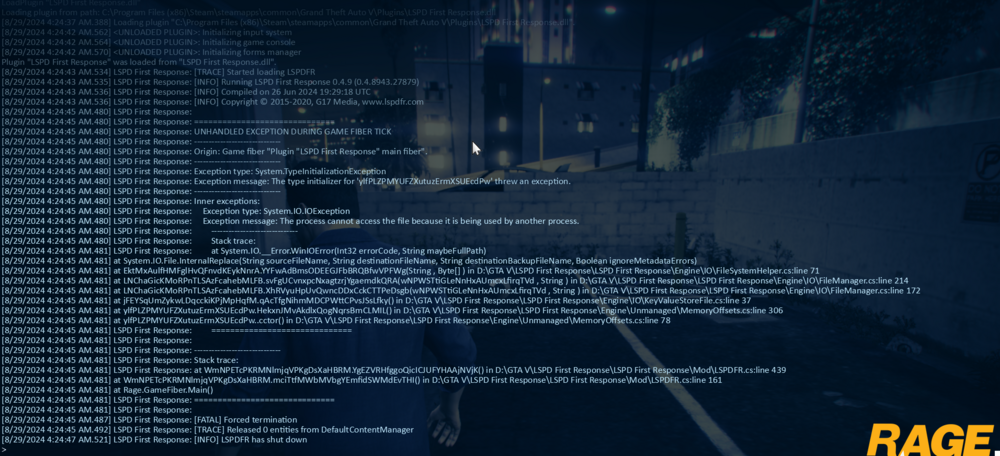
When I load into GTAV with RPH it loads fine unless I load with plugins, which is only LSPDFR as im trying to get back into it, it crashes. So I load in without any plugins, when im in, I try the LoadPlugin function to load LSPDFR, and it fails with the PNG attached, It doesn't crash my game so I dont get a RPH log (unless there is another way to). Ive looked over a different form / topic with this exact error, tried everything that was listed which was making sure NativeRage UI and RPH was up to date, allowing GTAV to bypass my firewall, restarting my PC and making sure no other apps could be using LSPDFR. I could really use the help, thanks.