


marco__stephan
Members
-
Joined
-
Last visited
Everything posted by marco__stephan
-
Yeah. in the previous version they were so innocuous
-
Same here. Look at the size. My download was 13 mb big.
-
He's from China. There are some special security files... :D
-
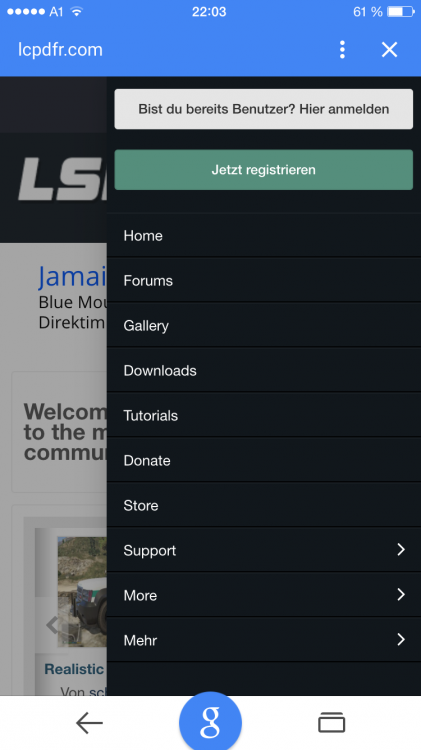
I think and hope that they'll never support cracked versions of GTA !3 Minutes left. Can't believe it right now.. Edit: The Countdown is trolling us..The countown changed my plans for tonight :)I didn't see the second more on the normal Website. Thanks for your illustrationIf i open LCPDFR.com on my iPhone 6 and enter the menu on the top right corner, there're several menupoints. Two of them are "more" and "mehr". In German is "mehr" the exact translation of "more". So there're 2 menu points with the same meaning and different content in them.
 I started RAGEpluginhook and Scripthook at the same time. Worked fine for me. You can test it. (But be careful! Don't take Scripthook with implemented trainer. The trainer of Scripthook and the console of Ragehook have the same key assignment [F4]).ASI Plugins should work. RAGE Plugin Hook has an implemented asi loaderDa nun auch die neue Downloadseite verfügbar ist, solltest du es ohne Probleme downloaden können. Es ist außerdem kein Chapta-Code mehr benötigt.

