Unit69
Members
-
Joined
-
Last visited
Everything posted by Unit69
-
Sure no problem! These topics should be closed if you guys dont want people commenting in them lol
-
Hello , where would I locate that? I tried looking but cant seem to find it for some reason.
-
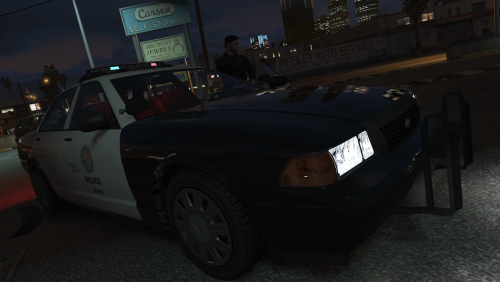 I am so happy I decided to try out DLS absolute game changer when it comes to bringing realism to your gaming experience. VERY excited to see what the future holds for this. Thank you so much guys.
- 283 comments
- 23 reviews
-
Bravo! I love it. The lights look so much better than ELS and the realism is noticed. Complete control of your lighting system. DLS is a dream come true!
- 283 comments
- 23 reviews
-
-
-
 Yall got counterfeit cheese curds as a charge?
 -
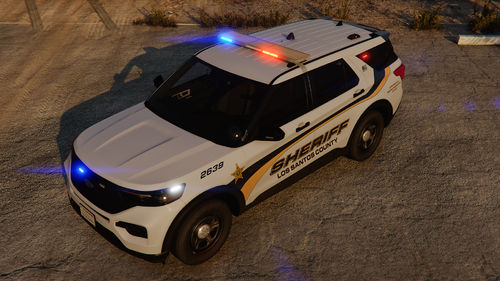
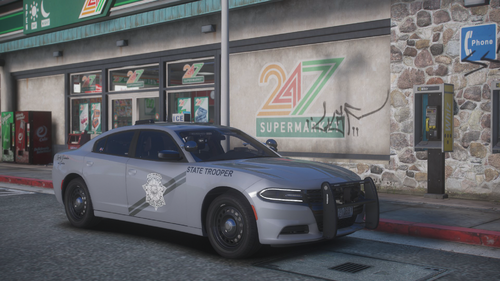 Love the car but Im having problems with the DLS. It wont even respond when I hit "j" to trigger the lights but for some reason the lights will come on if I press down on the Left Thumb pad. It goes right to stage 3 with no sirens at all. So I can only use stage 3 lights and no siren. I have no clue what Im doing wrong, hopefully someone can help me. Edit: Would DLSv2 have anything to do with it?
 -
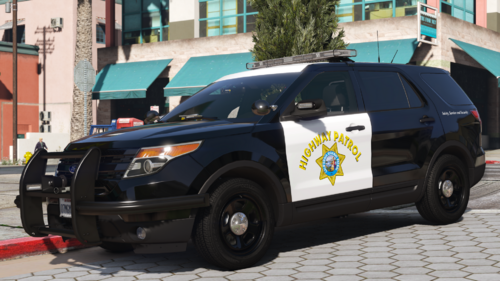
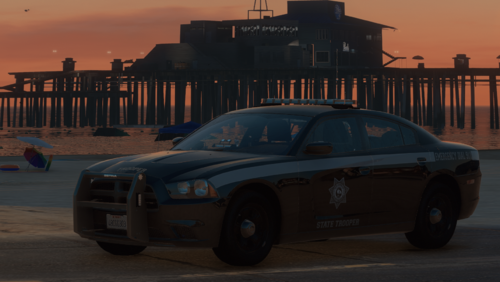 Wow these cars look great! I love the jet black with the touch of white. Looks sharp. I just have one problem I cant get the lights to work for some reason they dont come on 😞
 -
-
What would you guys recommend as a good monitor for a game like GTA
-
not really sure what the issue is. i think it may be a car i added? its a replacement and i only have 3 or 4 other cars
-