


GTALover44
Members
-
Joined
-
Last visited
Everything posted by GTALover44
-
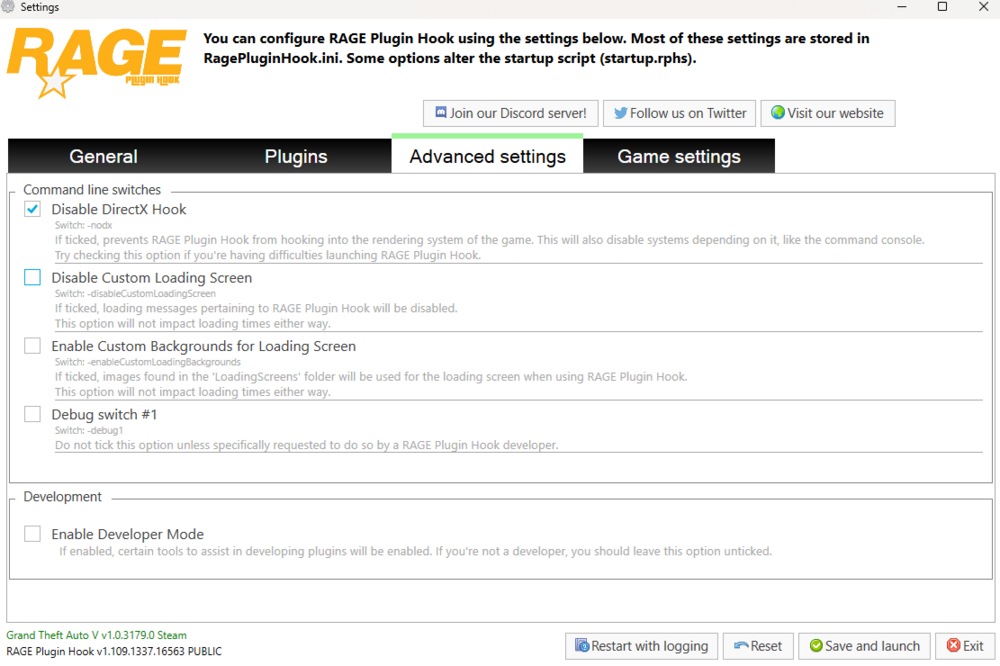
I can play the game normally, but the Rage Plugin Hook Command Tab does not appear. So when you check this box, the Rage Plugin Hook does not work.
-
This happens when you remove the "Disable DirectX Hooking" section, but this time the Rage Command Tab, which opens by pressing the F4 key, does not open. In addition, the RageNativeUI, ScriptHookV and ScriptHookDotNet files are installed and the clean LSPDFR file, that is, there is no plugin in it.
-
Yes, I can play, but this time when I enter the RPH settings, I get a crash at the beginning when I remove the "Disable DirectX Hooking" tick. Thus, it seems that the source of the problem has been solved.
-
I changed the mods folder to "_mods" but I couldn't get rid of the crash. As a last resort, I am sending the log file. Thanks. RagePluginHook.log
-
Have a nice day, everyone. I installed LSPDFR on the Steam version of GTA 5. I also installed plugins. However, when everything is going well, he throws it out of the game without coming to the GTA 5 menu. i have been dealing with this problem since 1 day. I've looked at their solutions on Youtube, but in vain, it's still crashing. Please, I would like your help. Thanks. RAGE PLUGİN HOOK LOG FİLE.zip


