




OfficerJaffa
Members
-
Joined
-
Last visited
Everything posted by OfficerJaffa
-
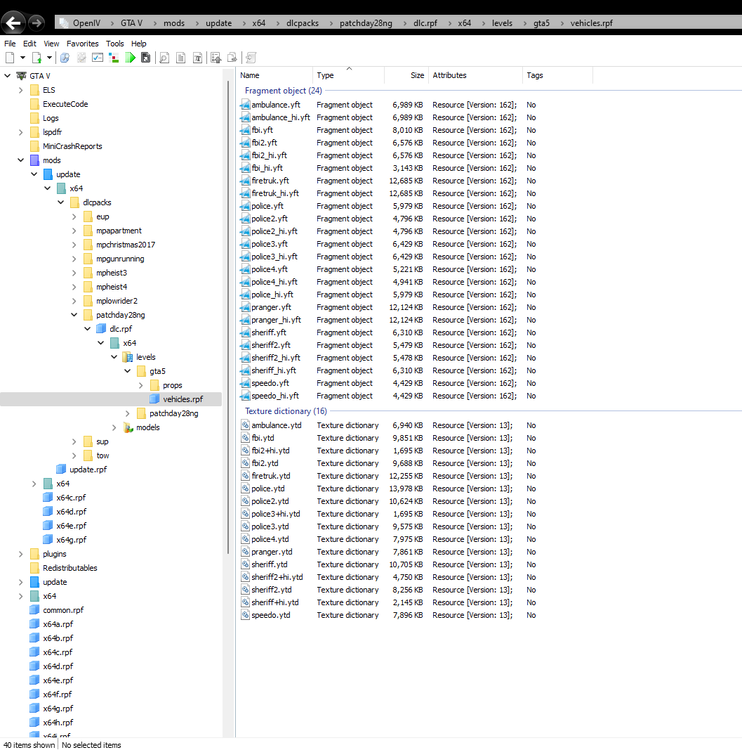
I followed Blueline Vines tutorial for adding vehicles. in the video he deleted all the stuff in that patchday then added the vehicles, I copied what he did and it worked completely fine.
-
No Problem! It seems to be crashing again, it did generate a crash report but it's just symbols. This crash happened after reinstalling the ASI Manager earlier. Before reinstalling the ASI I was able to spawn the vehicles but they would spawn as the in game vehicle and not the added one.
-
Sure thing!
-
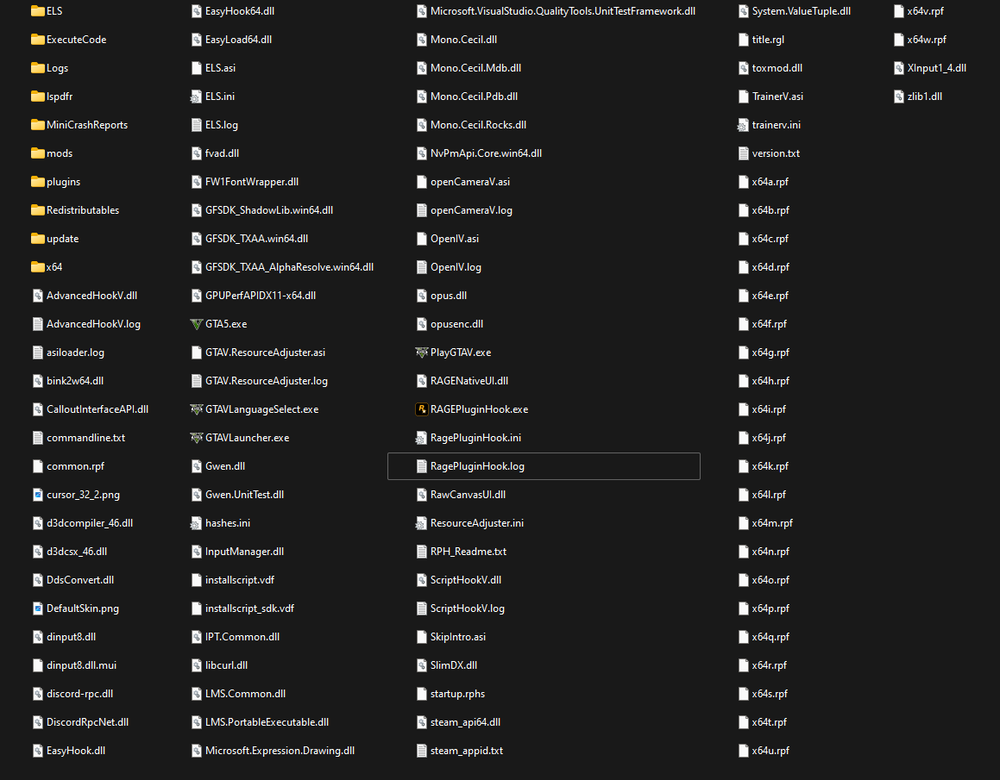
Hi! thank you for the fast response, this is all new to me so hopefully this is correct
-
Hi, yesterday I was able to play lspdfr just fine with plugins and addons. Today I decided to follow a video of a full install(avoiding stuff I had installed already) to get new plugins etc. I got to the point of the video where they said "if you're watching this in the future and you're crashing" then they got distracted and never finished. The problem I am having now is my game will launch with Rage and load my plugins but my EUP menu doesn't work plus my addons(gun sounds, vehicles etc) , they're all in OpenIV but it's almost like OpenIV isn't loading with the game. My game did crash multiple times on startup with rage and without so I followed a video and got the game working again. Any help will be greatly appreciated!! 👍 RagePluginHook.log


