
wheresosama
Members
-
Joined
-
Last visited
Everything posted by wheresosama
-
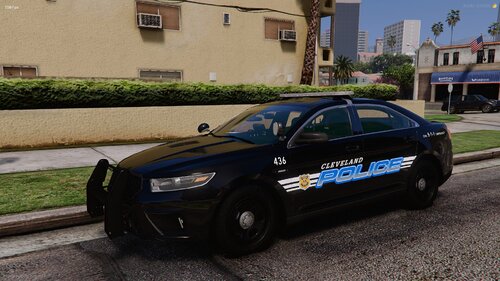 10/10 pack, will recommend
 -
 dude, this shit looks amazing, 10/10!
 -
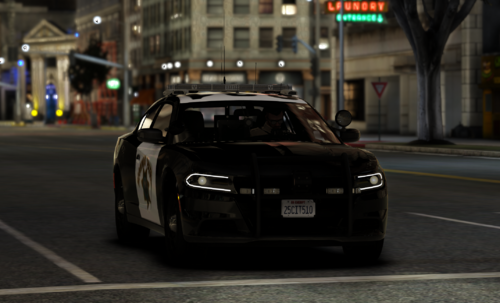
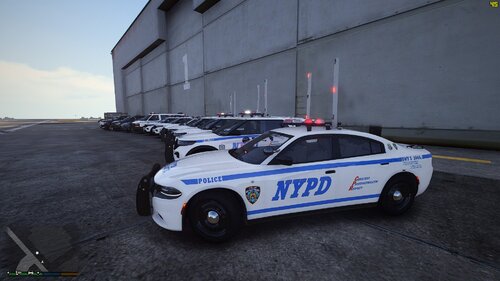 The pack looks pretty cool, will there be a update for the charger with the steelies and will there be a unmarked one for highway?
 -
-
 W mans
 -
If anybody is asking for the epic games directory of GTA, I don't know where that is. Figure it out on your own.
-
This custom pack was primarily made for FiveM, It can also be used for SP. Be aware that majority of the sounds weren't made by me, it was created by the creators below. Instructions: Go to your Grand Theft Auto V Directory. -> Program Files (x86)\Steam\steamapps\common\Grand Theft Auto V Go to x64/sfx Replace RESIDENT.rpf & WEAPONS_PLAYER.rpf inside sfx. If you're having trouble from FiveM saying "Detected modified games files" Drag both RESIDENT.rpf & WEAPONS_PLAYER.rpf to the archivefix.exe file, here -> https://drive.google.com/file/d/1Wsetj2iJtJRCevi263rm0Mz5GWXdOHhl/edit That's it, just start your game and do whatever! Preview, might look garbage because of the bitrate: https://streamable.com/sbec4h Credits: MvcGyver - Realistic Weapons Sounds bakerxgooty - Code 3 Z3 Rumbler wheresosama - Screenshot of the 2020 CHP Charger
-