


ExternalAlex
Members
-
Joined
-
Last visited
Everything posted by ExternalAlex
-
Thank you for helping y'all! I truly appreciate it
-
I've removed the "keep calm" plugin as well with all of the files included within that file in my GTA V directory and yet LSPDFR is still crashing when I go on duty. The file below is my most recent attempt of booting up LSPDFR. Could you double check if I missed anything? Thanks. I haven't touched any of my .xml files besides changing the names of certain .xml files which are my vehicle ELS .xml files. I've double checked all of the .xml files that you suggested I check, and I didn't find anything wrong; unless I am missing something as I have little knowledge with editing files etc. I also attached my most recent attempt of loading LSPDFR and could you also double check it please and see if I'm missing anything? Thanks. RagePluginHook.log
-
Hey, when I use RPH to play LSPDFR it usually crashes during loading or crashes when I am about to go on-duty. The file attached has my previous LSPDFR loading attempt which crashed shortly after. RagePluginHook.log
-
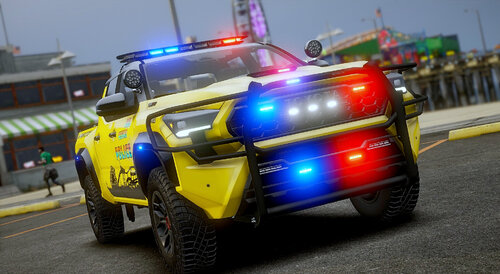 This may be an obvious question, but am I able to put all of the vehicles into my game files for LSPDFR? Or will it be limited to the regular 3 LSPD, 2 LSSD, and BSCO? But otherwise, this pack looks absolutely amazing! Never have seen a pack have so many police cars and sure enough none with LSFD included. Keep up the great work!
- 358 comments
- 26 reviews
