
CEO
Members
-
Joined
Everything posted by CEO
-
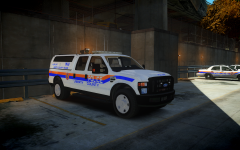
From the album: Kygo's gallery.
-
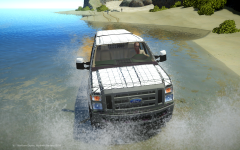
From the album: Kygo's gallery.
Ford F-250 SSV - Model is original F-250 from Driver SF, modified and converted to GTAIV by PoliceFanatic. - Major model edits and fixes and modified to FX4 by PFCBarefoot, modified and enhanced by deco. - Bed cover modelled and converted by deco. - Rims modelled and converted by deco. -
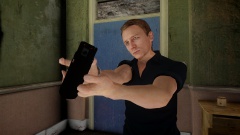 No that's Danial Craig.
 -
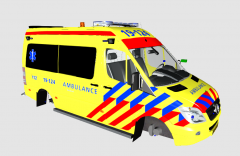 nice lightbar :P
 -
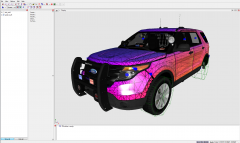 Bugs and firefighter as practicly best friends.
 -
Muricuuu, because that's the only country in the world right?
-
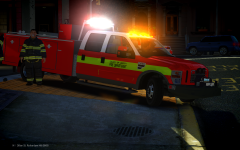
From the album: Kygo's gallery.
-
Great NB! But you should not credit me for editing the laptop :P, I believe it was for the partition which you have removed.
- 18 comments
- 6 reviews
-
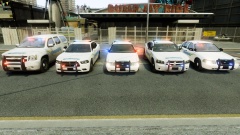 MiddleSEX HAH! Very nice job though!
 -
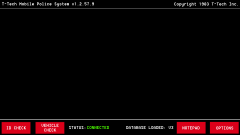 Taximan-Tech© Inc.
 -
Please contact us: decojoker@hotmail.com
-
Send us an e-mail :)
-
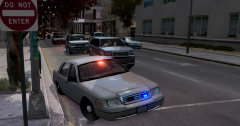 Very cool NicolaiB
 -
-
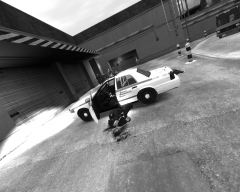 Yep, that's right. LCPD publishes pictures of their deceased officers on scene...
 -
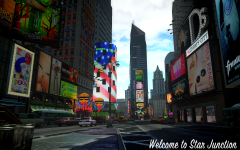 Yueshhh
 -
-
From the album: City Shots
EarthCam© has now installed their camera's on Star Junction. People at home can now entertain themselfs from the safety of their own house! To watch live images from all over the world just go to http://www.earthcam.com/ Happy spying! -
-
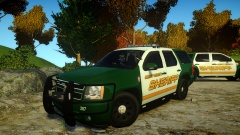 Good guy Nick cuz AGAIN!
 -
-
-
Yep, just the taillights. Credits are proper, I coppied the credits from your file. Unless you want me to mention you for the taillights.
- 44 comments
- 9 reviews
-
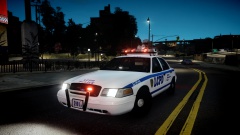 The author seems like a really cool guy.
 -
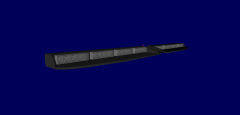 Nice, it looks good.