


sveto12
Members
-
Joined
-
Last visited
Everything posted by sveto12
-
-
Yes, that's exactly what I did (I downloaded the entire LSPDFR package along with RPH directly from this page), but it still shows up like this (and by the way, I can't turn off Battleye, even when I click to disable Battleye in the launcher, it keeps downloading, and I even added the -nobattleye command to the launch arguments)
-
It always downloads the latest version of RPH but it always shows me this.
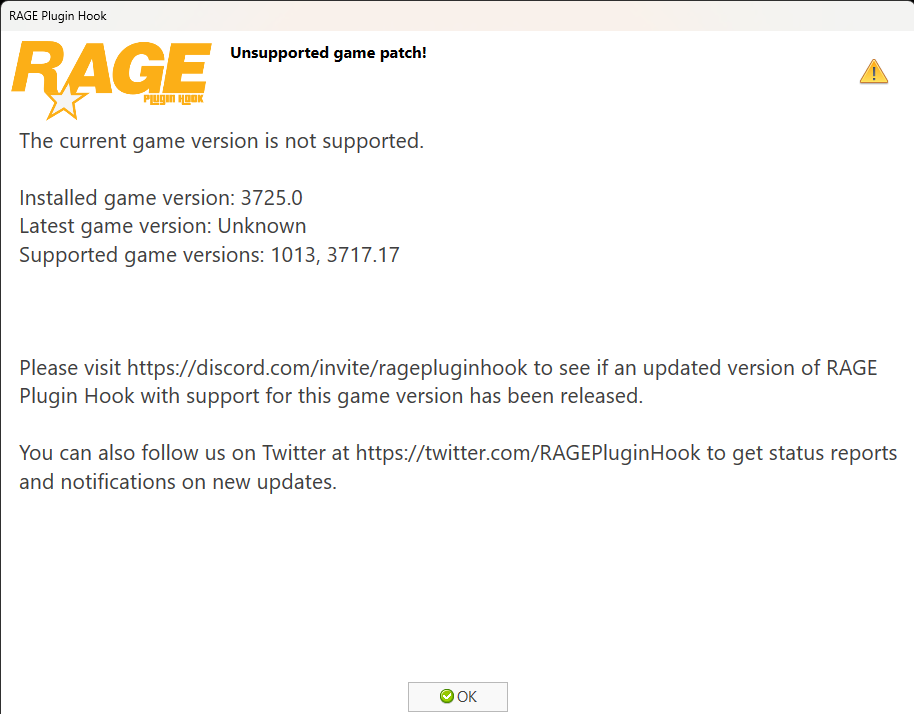
-
I have great news. I turned the computer off and on and it works! 😃
-
I turned on the game with RPH and the same thing again (And I added the game as an exception to my antivirus program).
-
Hello I'm having trouble launching the game using RPH. I need help. I have tried many times to run the game with RPH but it crashes every time. I'm a newbie and that's why I've been looking for different tutorials on the internet. But the game crashed every time and then it said: Slow system or insufficient permissions, failed to connect game process, insufficient permissions or bad antivirus. I also uninstalled the game with RPH (and then installed it) and still nothing. If anyone could help me, I would be very grateful. Well thank you!


