



evvybwoyy
Members
-
Joined
-
Last visited
Everything posted by evvybwoyy
-
.png.a41ef9579233e0280443794c8c360c71.png) where can i get this pack ?
where can i get this pack ? -
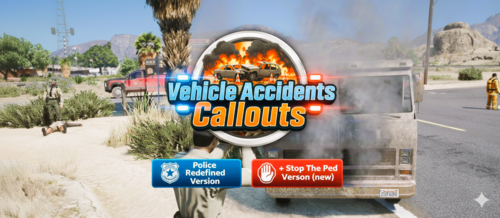 these or few of the callout thats not working for me the rest of them or fine but these ones crashing my game Senora Freeway Animal Hit = Not working Great Ocean Highway Truck Accident = Not working Abandoned Vehicle Crash = Not working Hit And Run on a Gas Station = Not working Hit And Run on a 247 Market = Not working Hit And Run on a Paleto Bay (Fuel Station) = Not working Hit And Run on a Los Santos Airport Parking = Not working Fuel Transport Crash (Paleto Bay) = Not working Truck and Car at Elysian Fields Fwy = Not working
- 49 comments
- 8 reviews
-
After testing everything I added, I decided not to create a new mod folder right away because I wanted to actually find the source of the problem first. My goal was to figure it out properly so this information could hopefully help someone else in the future. The issue turns out to be within vehicleaihandlinginfo.meta. To fix it, you need to delete that file and replace it with a fresh one from: common.rpf > data > ai Once I did that, the problem was resolved.
-
so everytime im chasing a suspect and catch them and time to arrest them LSPDFR crash. my whole game did not crash just the LSPDFR plugin here is my logs for more information any help would be nice RagePluginHook_27122025_073151.log video proof
.png.a41ef9579233e0280443794c8c360c71.png)
