


.png.a68345336369b473835704633cb038ce.png)
OceanSkyways
Members
-
Joined
-
Last visited
Everything posted by OceanSkyways
-
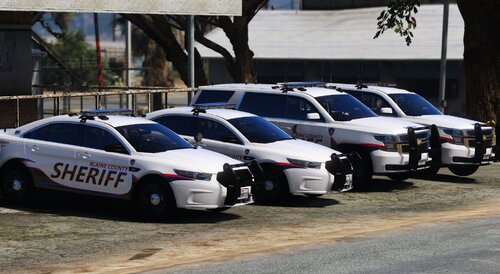 This is the game configuration I use with stock traffic, and I have no issues with it. https://www.gta5-mods.com/misc/gta-5-gameconfig-300-cars
 -
ELS should be working if you have the updated version. Just follow the instructions on the page.
-
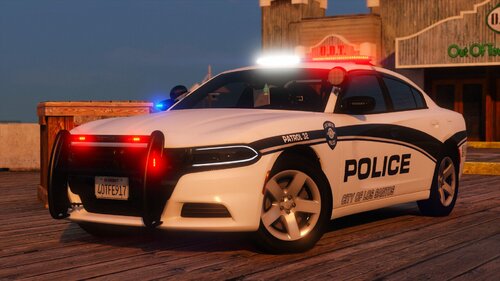 Resolved itself.
 -
Is anyone else having issues installing the pack? I just installed it, and it is not showing up in Simple Trainer. I copied the item name for the DLC list and copied the files into the DLC folder. However, the cars do not show up in simple trainers.
-
.thumb.png.2bed8e24a02c929e4e15a3f0d53c4e54.png) Cool
Cool -
Does it include the female versions?
-
Issue fixed needed to reinstall resource adjuster.
-
I have updated my game and LSPDFR to the latest patch, which includes the bail bonds update. After installing the updated versions of LSPDFR, RPH, script hook, etc., and loading in, I noticed that I was experiencing texture loss that I had not seen before the patch. This issue only occurs when LSPDFR is on duty. My settings remained the same before and after the update, such as having the extended texture budget at maximum. I removed all of the callouts to see if there was any incompatibility and tried using _mods with no effect.
-
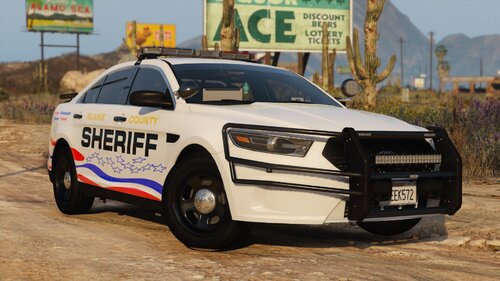 Maybe it is just me, but I have noticed that on the pack, the FPIS engine's sound seems to be coming more from the right side of the vehicle than the center.
 -
A few minor bugs I found in the pack. The 2020 FPIU Replace/Addons doors are not solid and can be walked through. The Ram's handling seems to be top-heavy/light. Other than that, it is a good pack
.thumb.png.a96c729ce9f5b26f8b706ee1216755b6.png)

.thumb.png.2bed8e24a02c929e4e15a3f0d53c4e54.png)
