


249Xeno
-
Joined
-
Last visited
File Reviews posted by 249Xeno
-
-
-
- Amb3rTheCanadian, Trupel and Rosebuddy
-
 3
3
-
-
-
-
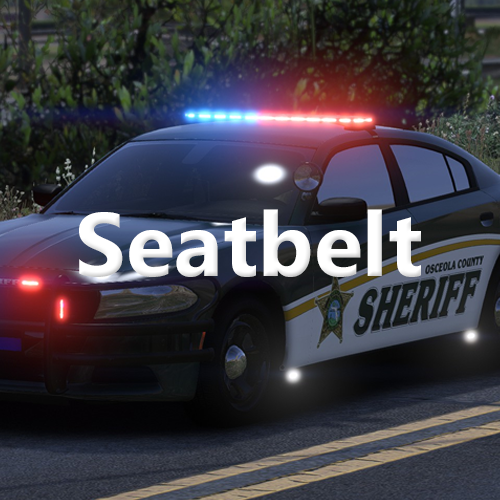
excellence mod indeed. I love having this in my game and now I don't have to see cars crashing a lot in that intersection
-
awesome cars... I like the light and using Whelen is a smart choice. I have created a texture for the 2018 charger. I hope you like it. It is in the comment section.
-
So, after testing the vehicle in SP.
I can't use this vehicle with DLSv2 on SP since it was not set for that. I don't know what I can do or showcase this vehicle because the takedown does not work right. I tried to add extra to the vehicle. meta and that made the takedown lead-up in game ver disabled them in the component in the vehicle mod.
I will have to put it away since I don't use LmL. The vehicle is great; I love it because it runs like an RL engine through the DLC packs I use.
I give 4/5 because I love the car and the lightning on it.
-
-
-
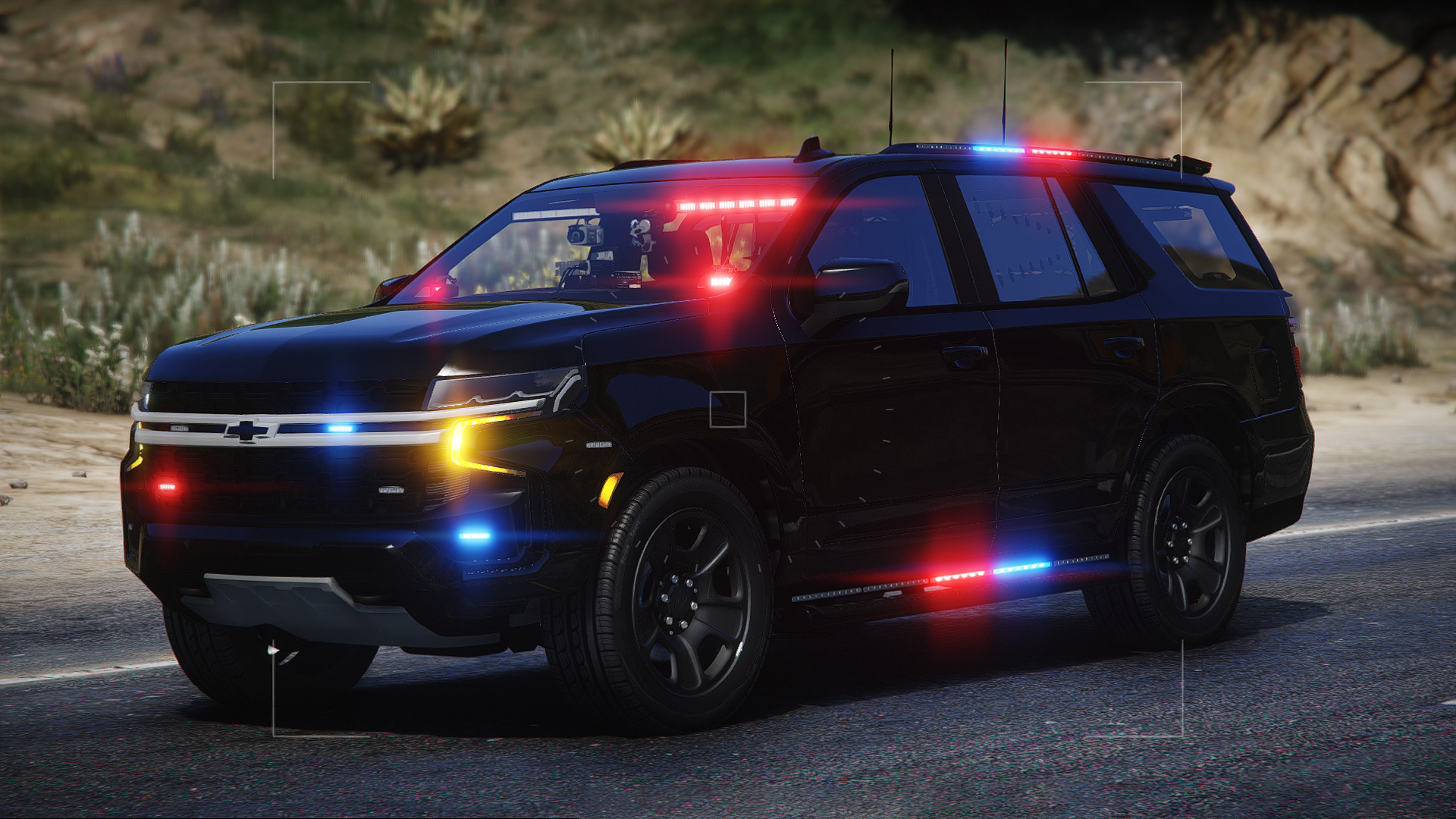
the car looks okay, but the lighting is confusing. I'm unsure why stages 1 and 2 are in the front rather than the back.
I wonder how other vehicles coming from the back will know if you're on a traffic stop. Also, I am wondering if this is a hybrid or full ELS.
-
-
-
-
-
-
-
Edited by 249 Parzival
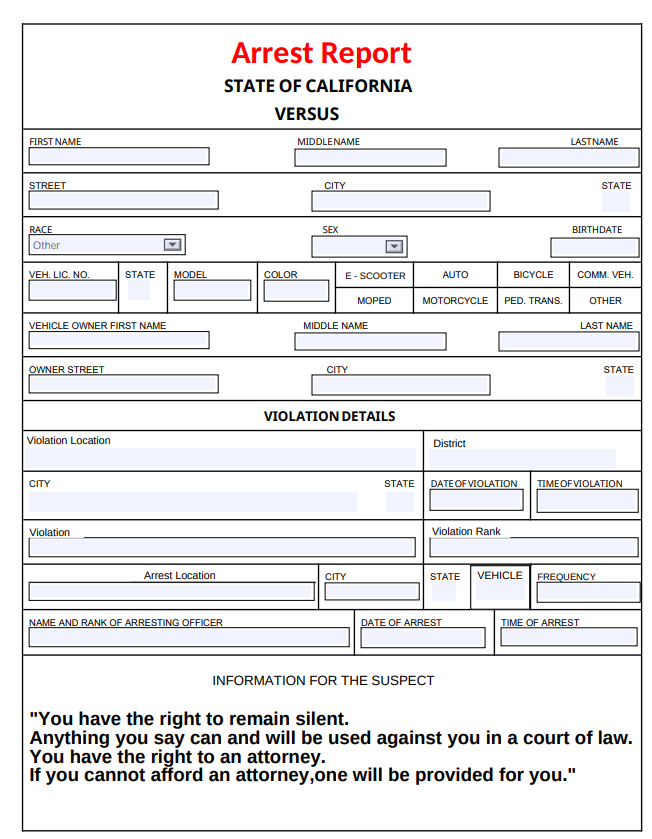
I like the plugin, but its confusing. I can install it and get it working but on this part, it isn't very clear.
It would not show up in-game as it should, but the instructions are unclear as to what you mean by the first step. Are you referring to the ReportPlus server side or the Application side?
Update: I changed the star from a 3 to a 5.
-
-
-
-
-
-
Love the cars and the lightning!! I would suggest using different kinda of lightning for the rooftop too.
I would like to see some valors and Whelens lightbars too to be very unique. I love the Lightning now, but different brands would be nice too.










.png.3b4a74acdc4bbef89cf7cc67b41ebf01.png)


Siren Police - Part 7
in Audio Modifications
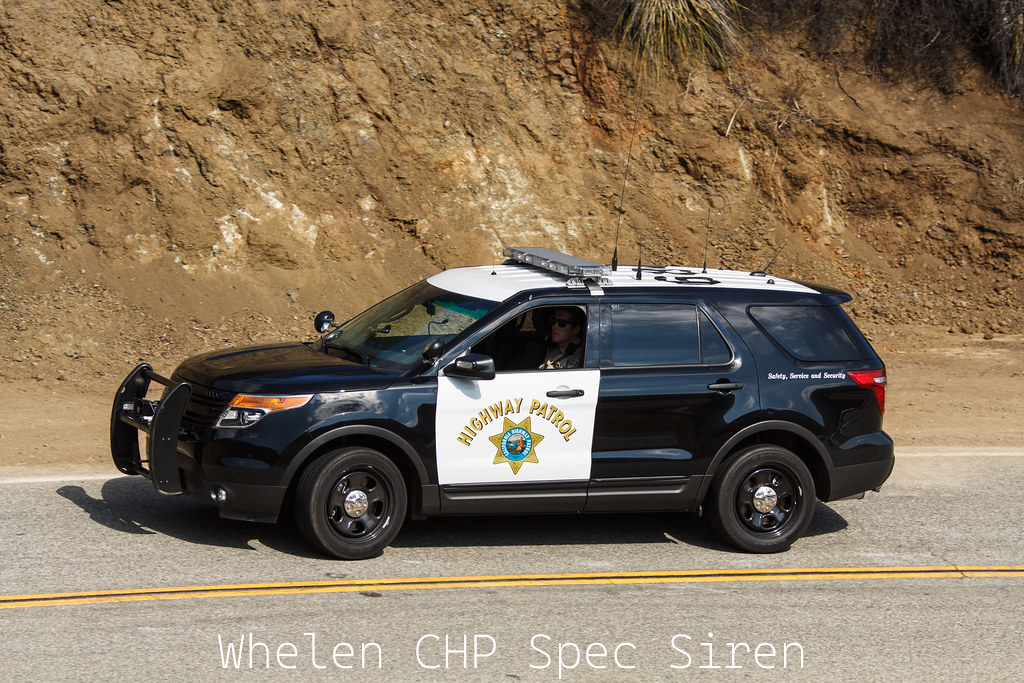
siren sounds good and clear.
each siren has their own levels of siren, but I think the best one are one and last one. These two can make a good combination.