


tinywolf11
Members
-
Joined
-
Last visited
Everything posted by tinywolf11
-
finally fixed it after 3 days (lol). I had removed the everything from the plugin folder like someone else had reccomended on another post. I tried running the game like I had been and put the contents of the pluginfolder back in then reloaded all the plugins in the game. just like the first time I tried it, it didn't work at first but did on the 3rd try. Thanks for your help anyway though 🙂
-
How would I do that because I litterally can't find anything related to LASPFR except for the files that I installed. there is nothing that does that in the files (like rph has the file that runs it) and there is nothing when I actually run the game....
-
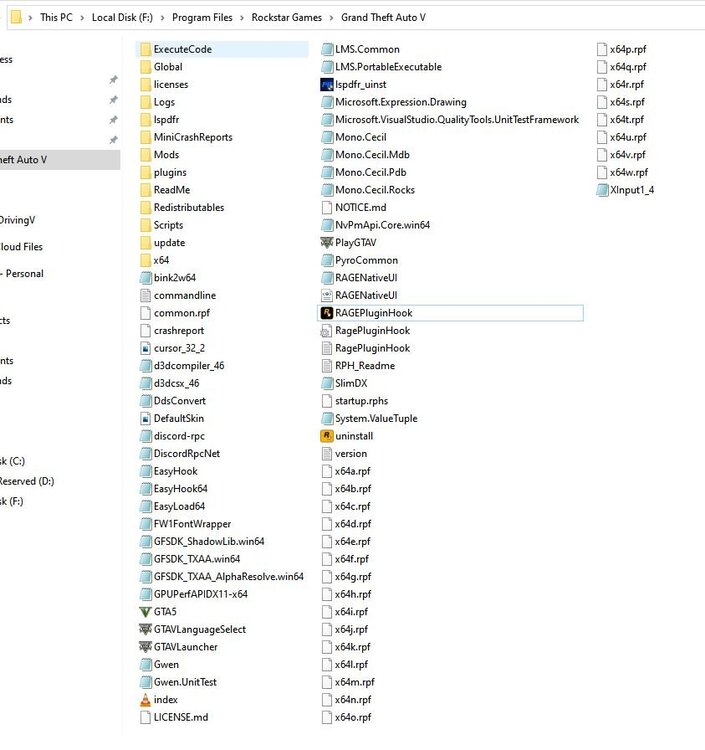
I've uninstalled the most recent update. it is now loading properly like it did last time I played with LSPDFR but when the game actually loads, nothing changes and I can't play with the mod. no lspdfr tab on the 'esc' menu, nothing happens when I go to a police station etc. also, I've attached the gta v directory for UnknownBastion. I had to change the view to fit all the files in, but I could send you two screenshots in the view that has the information next to it if that is more helpful?
-
Yeah I read about. I've tried disabling windows defender but nothing changes. I've also just tried removing mods from the plugin folder like you said, but it was doing the same thing...
-
Hi. I decided to play gta v with LSPDFR again since I enjoyed playing with it a while ago. I installed LSPDFR yesterday but it wouldn't work. I have uninstalled it, then reinstalled it today. I have been trying things that others have suggested to people having similar problems but It is still doing the same thing. When I start GTA V then RAGEPluginHook (like in the install tutorial) rage starts to load. it says something about "verifying hook" then rage crashes and GTA V usually crashes too. sometimes it will look like it is loading, then rage will just disappear and GTA V loads normally. usually though, the above happens. I've tried a bunch of things including: -uninstalling Avast (although unfortunately, I think it's still lurking around on my PC for some reason) - disabling the normal windows antivirus -setting the plugin timeout threshold to 60000 -setting it to not load any plugins -getting rid of the other LSPDFR related mods and things I had also installed -running Rage as administrator - clicking the "restart with elevated privileges" button. -I copied the "update.rpf" and "update2.rpf" files and pasted them into the mods folder (which I had to create). I don't know what this does, but I remember doing it last time and it worked, so I read that it worked for someone else in another forum post. - tried running it offline -changing my mod folder to _mods to disable it or something. I might have tried some other things too, but thats the stuff I remember. most of this was from a couple different threads. I can try and find all the threads of advice and the instructions I've followed, if that might be helpful? I've attached a file that I've seen some other people attach. I hope it is of some use here? I would greatly appreciate any advice on how I can Successfully play with LSPDFR. it was great fun last time and can't wait to play it again. RagePluginHook_19062023_102702.log

