


William65572
Members
-
Joined
-
Last visited
Everything posted by William65572
-
-
-
-
-
-
-
-
![[WIP] - LC Sheriff Skins](//s3-gallery.int-cdn.lcpdfrusercontent.com/gallery/album_1457/sml_gallery_57919_1457_1314.jpg)
From the album: My Gallery
-
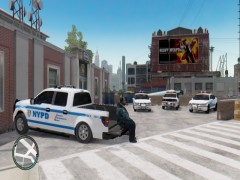 Haha. Yeah, felt bad for the F:150. You can't see it, but theres a back door on the ground next to cop (First try, broke it lol)
 -
From the album: My Gallery
-
I have this PC and was wondering if LCPDFR will work on it while using an ENB and other mods (Traffic Flow, Police Helper, em. vehicle mods, etc.) Here are the specs: -OS: Win 7 Home Prem. 64 Bit -MB: ASRock mATX 960GM/U3S3 FX AM3+Socket with SATA 6gb/s -CPU: AMD FX-4100 Zambezi 3.6GHz -GPU: EVGA Nvidia GTX 650 ti SSC (SuperSuperClocked) Thinking about upgrading to 660 ti -PSU: CoolerMaster 500w -HD: 250GB Blue 6.0Gbs 16MB Cache -Thanks
-
-
Thanks for letting me know :P They should work now
-
-Account Not Used Anymore- Current Account: Post
-
Thanks a lot man! :D
-
So would I (switching to 7) be able to run not only GTA IV, but most importantly LCPDFR? Would I be able to record with Fraps and would it not not crash that often? Thanks for getting back with me. Sorry if im asking to much.
-
I'm wondering if this will run LCPDFR good. SPECS: -AMD FX-8120 Eight-Core 125W Desktop Processor @ 3.1GHz Can be Overclocked to 4.0-4.1GHz on stock voltage -ASUS M5A88-V EVO AM3+ AMD 880G HDMI SATA 6Gb/s USB 3.0 ATX AMD Motherboard -300 GB Hard Drive With Windows 8 -2x Radeon HD 6790 1GB 256-bit GDDR5 PCI Express 2.1 x16 Can be Run in CrossFireX mode and Overclocked -Kingston HyperX Blu 8 Gb + G.Skill 2 GB RAM for a Total of 10 GBs of RAM
-
Columbia Police Deptartment, Missouri



![[WIP] - LC Sheriff Skins](http://s3-gallery.int-cdn.lcpdfrusercontent.com/gallery/album_1457/sml_gallery_57919_1457_1314.jpg)
