


Tobi91
Members
-
Joined
-
Last visited
Everything posted by Tobi91
-
Vielen Dank. Hab zuvor in einem Thread gelesen dass das mit der Audio Quelle auch zusammen hängen kann. Hab jetzt von Kopfhörer auf die Normalen Boxen geswitcht und jetzt stürzt RPH nicht mehr ab. Trotzdem danke für deine Hilfe 🙂
-
Hi @Lenny1161 Sry hab den falschen Log gesendet im Anhang befindet sich der Richtige. Soweit ich sehen kann ist da ein Problem mit SlimDX hast du eine Lösung dazu. Vom Virenscanner wird nichts blockiert. NET. Framework ist die aktuellste Version drauf. und sfc/scannow hab ich gemacht ohne erfolge. RagePluginHook.log
-
Werd ich versuchen. Danke schonmal
-
Hello Officers , I installed LSPDFR manually and when I call for backup on duty or get a callout RPH crashes can someone help me. RagePluginHook_19052023_174713.log
-
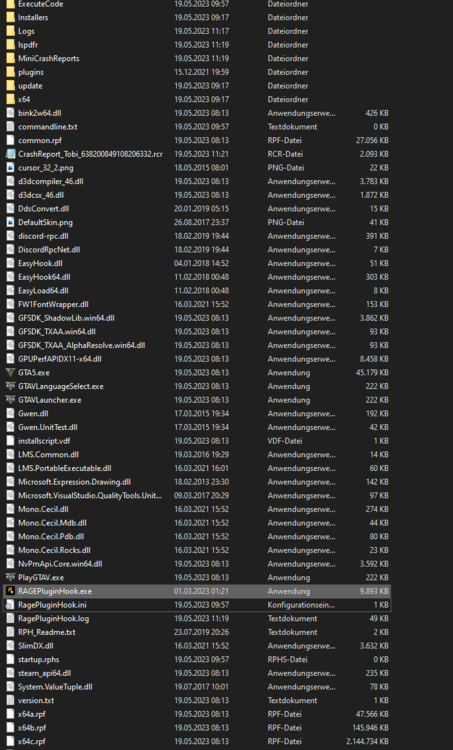
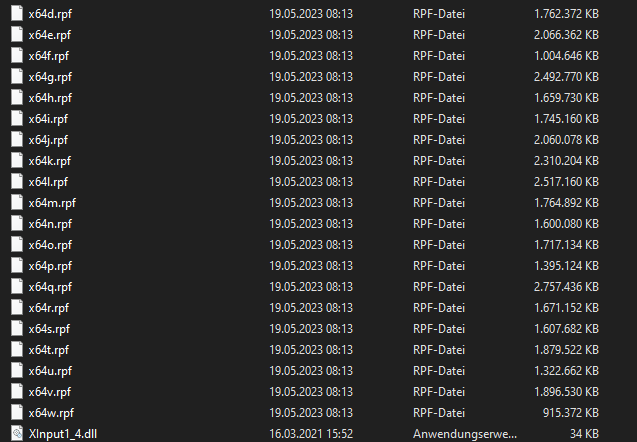
Kleines Update, hab GTAV neu installiert und LSPDFR Manuell installiert. Funktioniert bis Ich Backup rufe oder einen Callout annehme. RagePluginHook_19052023_075740.log
-
Hallo Leute, hab heute LSPDFR und EUP installiert funktioniert auch alles, aber wenn ich auf Force Duty gehe und einen callout annehme oder backup rufe crasht RPH. Die Log Datei häng ich an und hoffe mir kann jemand helfen. RagePluginHook.log RagePluginHook_18052023_185245.log


