


SammyFoxx
Members
-
Joined
-
Last visited
Everything posted by SammyFoxx
-
.thumb.png.461ce8880ceafbe24cade7cae1e3f8ee.png) Of all the unrealistic things on this site, I don't think future-proofing is that egregious. Nobody is making you download this, and quite frankly it seems like a well made mod. Chill.
Of all the unrealistic things on this site, I don't think future-proofing is that egregious. Nobody is making you download this, and quite frankly it seems like a well made mod. Chill. -
 The two versions labels are not related. The DLL file's versioning is updated manually by the author during the build process, and the zip file is done manually at a different point. As a matter of fact, one of them uses traditional semantic versioning and the other doesn't, so they can't be related.
- 39 comments
- 2 reviews
-
-
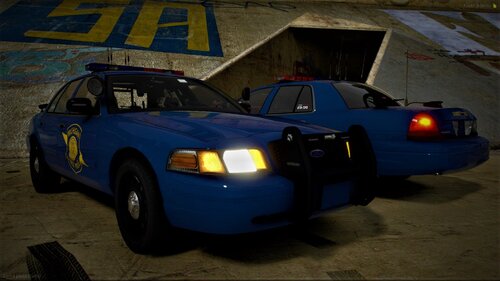 Alright! Just wanted to make sure :]
 -
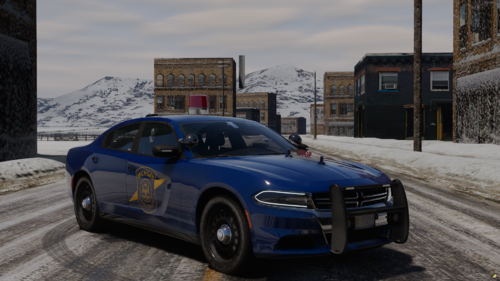 I'm a Michigander, really glad to see a nice authentic MSP pack! Good work.
 -
Michigander here, love to see it. One tip; the words "State Patrol" are not present on any vehicles, and the placement is a bit off. See here for reference.
-
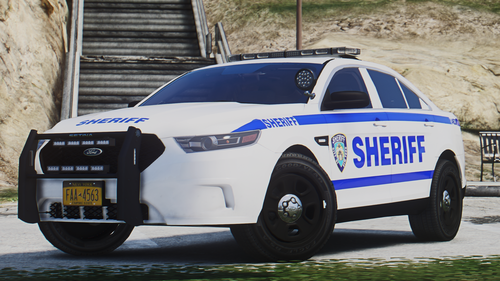 It's honestly tragic that this villainous modder forced you to download the vehicle. Quite frankly, I find it abhorrent that this person is pursuing their passions and enjoying their life. I'm glad we have people who've never made mods to help rescue us from these disgusting mods that took effort and time.
 -
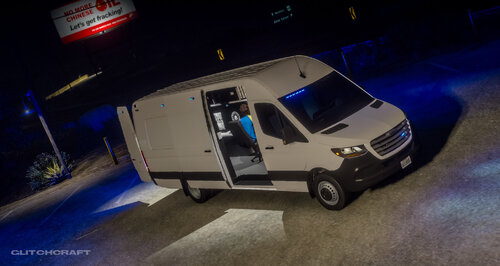 Since you mentioned using Blender to make this, do you have any further information about modeling GTA V mods through blender? Most of the stuff I've seen requires Zmodeler, and I'm not interested in paying for a subscription.
.thumb.png.461ce8880ceafbe24cade7cae1e3f8ee.png)


