GamingGranny53
Members
-
Joined
-
Last visited
Everything posted by GamingGranny53
-
Thank you so much, I will try again!
-
Thank you for your prompt response. I will try and find a crash log. Unfortunately, I don't know where to look to get this report. 😓 Is this what you need to help me? RagePluginHook_08062023_070658.log
-
Good Morning, Happy Thursday. After adding, Stop the PED, Ultimate Backup and Compulite my LSPDFR crashes. It ram fine before I added these three mods. Please help and explain it to me like I am two!😅
-
Thank you! Now it's learning to use this phenomenal game. I am still trying to figure out the controls for the PS5 controller and the MODS. Once I become familiar, I can be more productive in really playing!
-
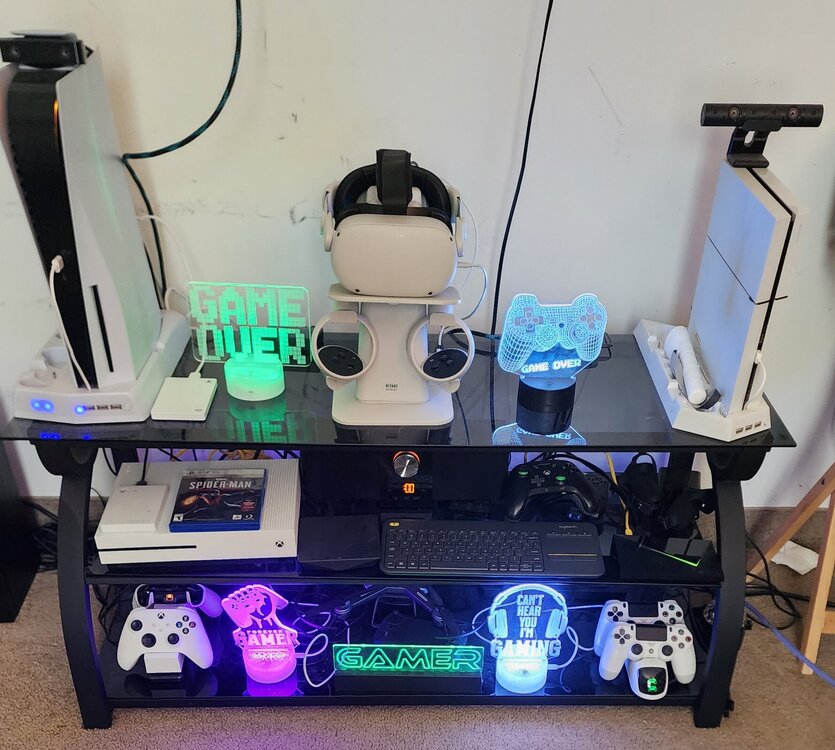
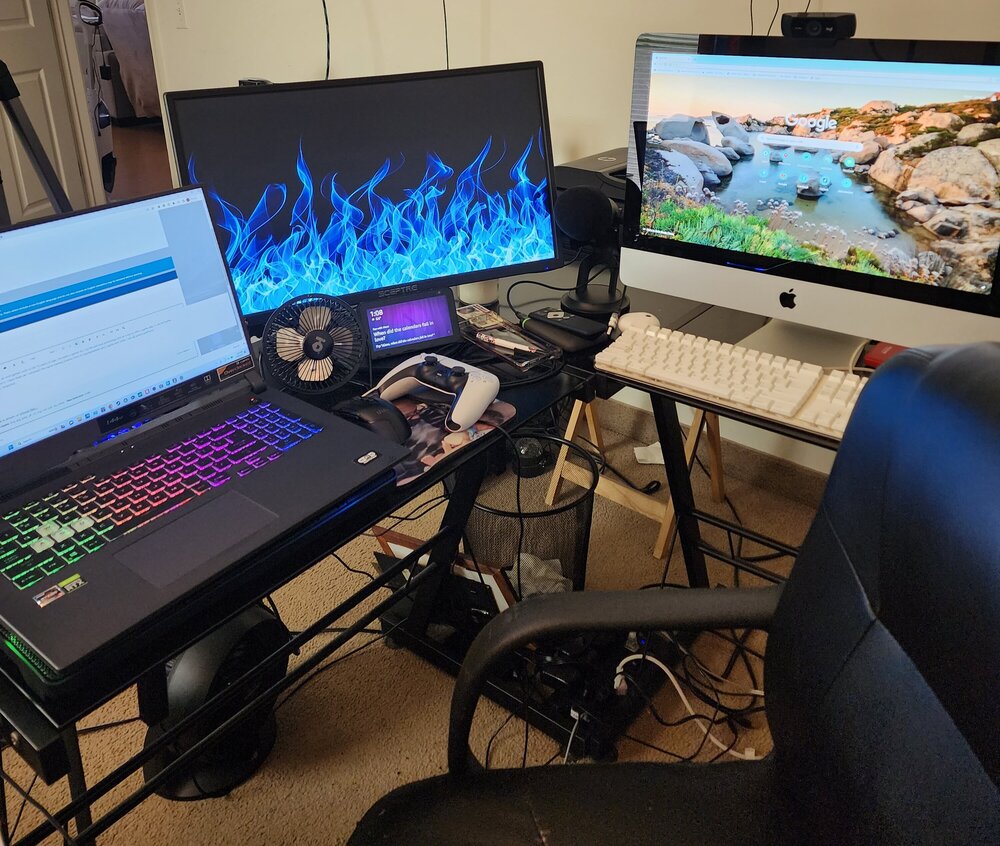
Hello, I am GamingGranny53, an avid gamer, soon to be 70 years of age. I've been a gamer ALL my life and love technology and all it has to offer. I game daily. It can be mobile PC. PS4, PS5, XBOX, or Quest ll. I have them all. I received the name Gaming Granny from my grandchildren who I game with often. I am on several platforms. Youtube, Twitch. Instagram, Snapchat. I like playing Madden, Undisputed, GTA V, and now of course LSPDFR. I simply cannot get enough of this game. I am open to any and all help in keeping it running smoothly. Thank you so much to all of you and your hard work, that helps to make this new journey of fun so enjoyable!