Negis
Members
-
Joined
-
Last visited
Everything posted by Negis
-
Something still crashes but i can play with everything and everything is working so far.. I will test it today for some hours. Thanks to everyone helping me to find a solution !
-
Every plugin is loading correctly now but after creating a officer and going on duty my lspdfr still crashes even tho i reinstalled the lspdfr folder as u mentioned RagePluginHook.log
-
its working now but smth still crashes while forcing duty - i can still play with my callouts and everything but ill upload the log again it feels like im still doing something wrong RagePluginHook.log
-
Thanks for the help RagePluginHook.log
-
I got the Callouts working now with the LSPDFR folder but if i use my Key for EUP it still crashes
-
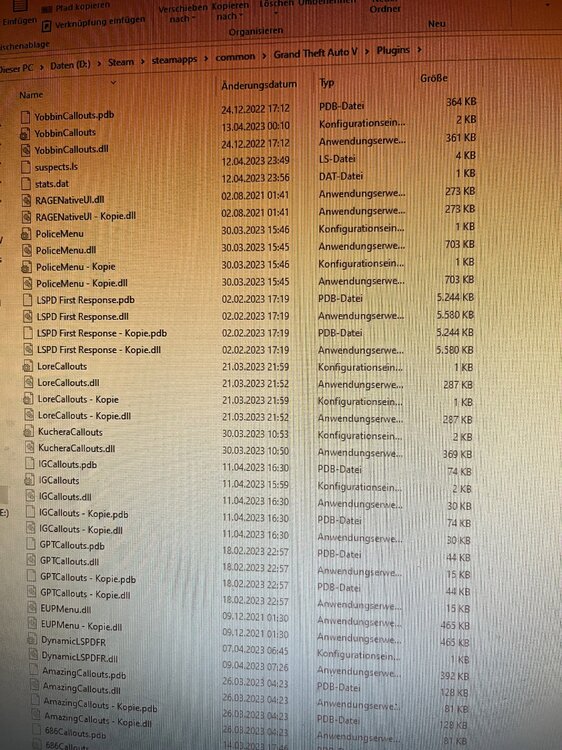
Hey Thanks for the fast reply, 686 Callouts are working now. But the other Callouts aint working. I tried to it as descripted by OfficerChris1 but now my PoliceMenu isnt working anymore at all. If i try to load the plugins manually it not even displays them in the console if i dont have them in the GTAV/Plugins folder If i press the command for my EUPMenu it crashes aswell now..
-
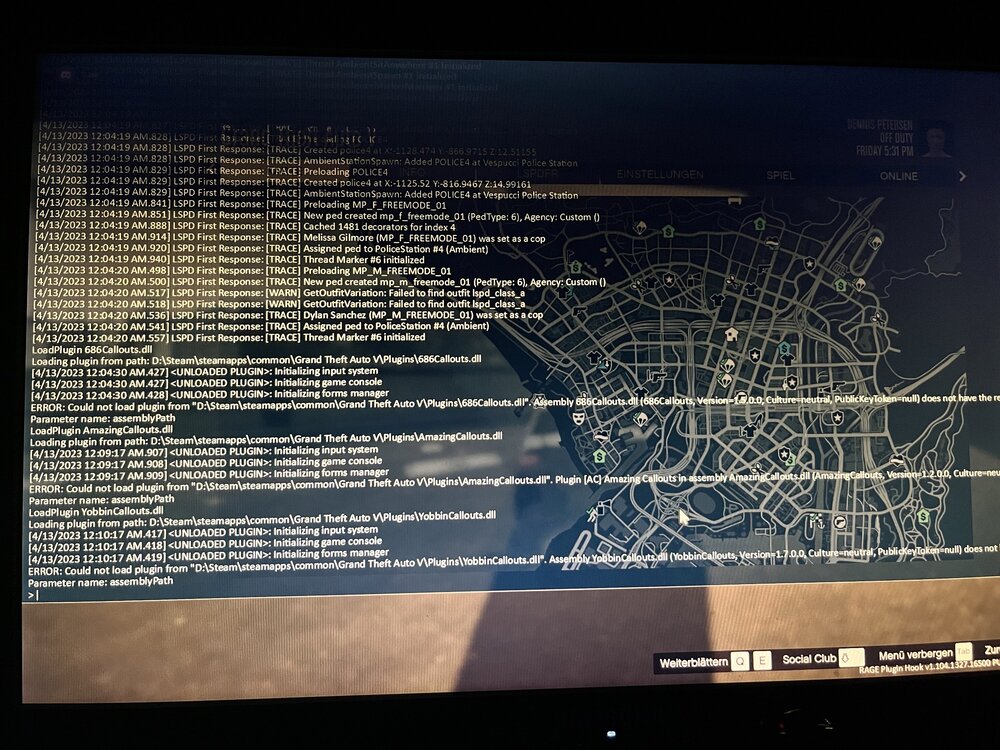
Hey, ive got a small problem. My plugins aint loading. Ive already tried to create a LSPDFR folder into my plugins folder but if i do that i cant even try to load them. Ill load the Plugins manually over the Ragehook console and if i do that it show the problem on the picture. Maybe you can help me