


UOL
Members
-
Joined
-
Last visited
Everything posted by UOL
-
Danke! Jetzt funktioniert es wieder.
-
Hallo, danke für die Antwort. Hier ist meine Ragepluginhook.log RagePluginHook.log
-
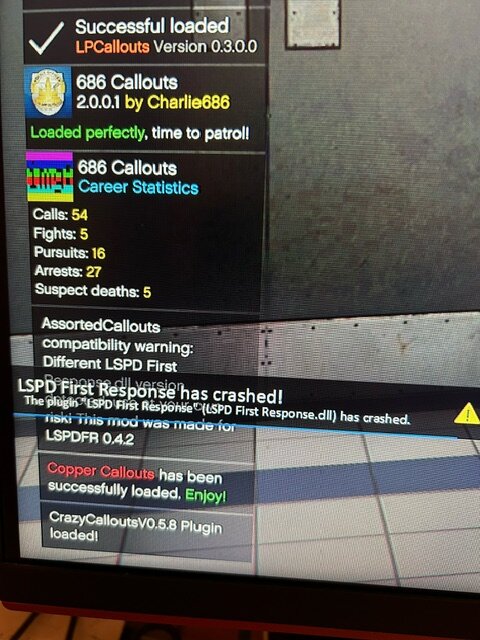
Sehr geehrte Community. Ich habe ein Problem mit LSPDFR. Seit einer kurzen Zeit stürzt LSPDFR immer ab wenn ich in die Polizeistation reingehe und auf ,,go on Duty" drücke (Foto unten). Ich hoffe ihr könnt mir helfen. Danke im vorraus.
-
Danke dir jetzt Funktioniert LSPDFR wieder.
-
Tut mir leid für die späte Antwort. Hier ist meine Ragepluginhook.log. RagePluginHook.log
-
Kann mir bitte wer helfen, weil bin echt am verzweifeln.
-
Aber die callouts und LSPDFR selber hat ja gut funktioniert bis ich Stop the ped und rage nativ ui installiert habe. Nur nach der Installation stürzt LSPDFR ab egal ob stop the ped und Rage nativ Uli installiert ist oder deinstaliert.
-
Ja dann gehen doch die callouts Weg. Wenn ich das entferne.
-
Und was soll ich damit machen? Ich kenne mich leider mit LSPDFR nicht so gut aus.
-
danke für deine Antwort. Aber nach dem Instalieren von Rage Nativ ui stürtzt das spiel direkt beim laden ab. Hier ist meine ragepluginhook.log RagePluginHook.log
-
Sehr geehrte Comminity. Ich habe ein Problem mit Stop the Ped. Ich habe es mir installiert und wenn ich LSPDFR starte dann stürtzt es ab. Wenn ich Stop the ped Deinstalliere dann läuft LSPDFR einwandfrei. Ich hoffe ihr könnt mir weiterhelfen.
