


Pinata
Members
-
Joined
-
Last visited
Everything posted by Pinata
-
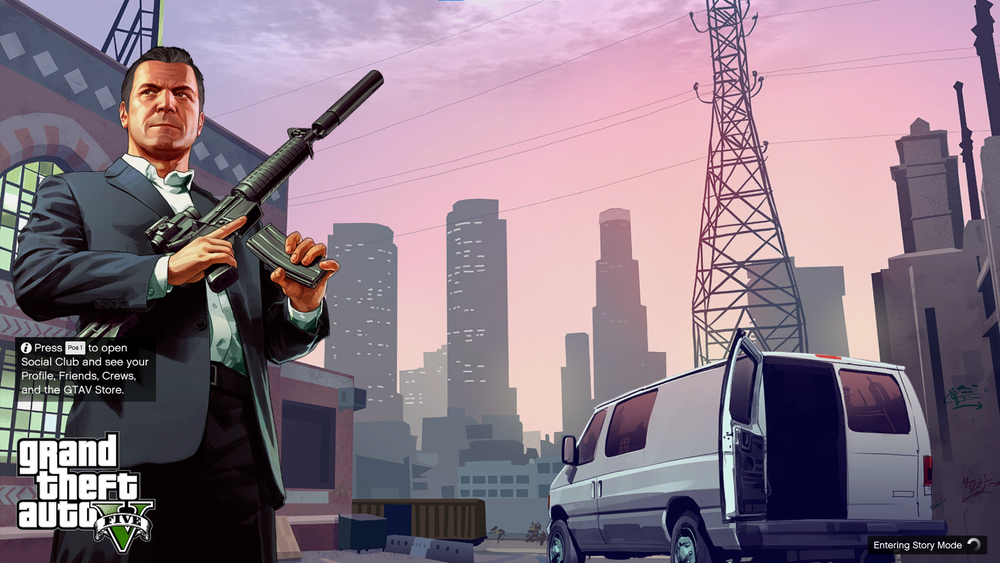
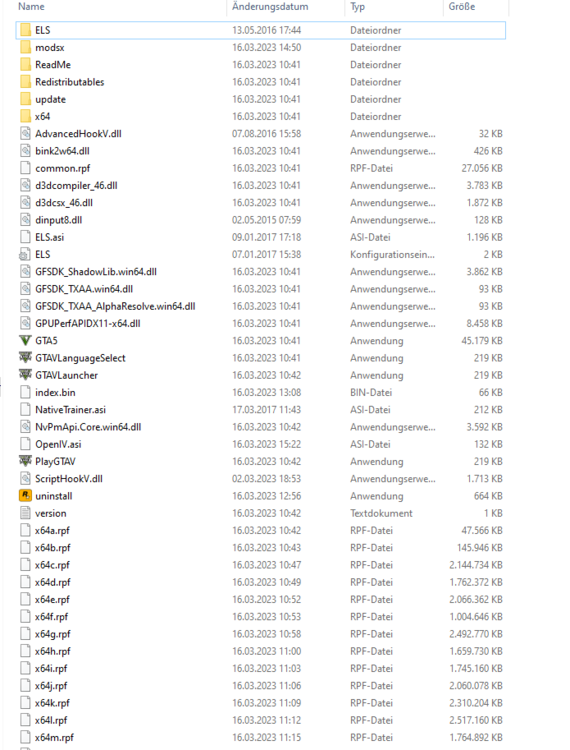
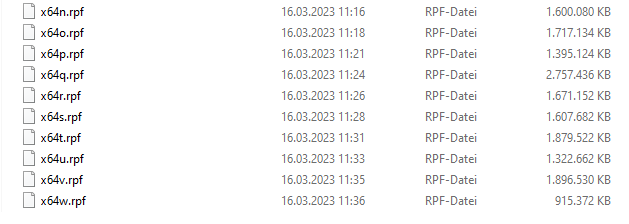
Just tried that, same problem. On my clean install my mods folder is empty, I tried with empty mods folder, with one car installed, renamed mods folder, ELS folder deleted, ELS folder stock, ELS folder with the POLICE.xml that comes with it deleted, it is the same problem every time. I will attach a few screenshots for you: This is where the game crashes at: This is my GTA folder when everything is installed as mentioned. Mods folder renamed, ELS folder is the one that comes with the download:
-
Hello folks! I have been trying to fix this through some ways now but finally freshly installed GTAV again this morning. The situation is unchanged: I have: The OpenIV files, Scripthook V and ELS installed as the only modifications to my game right now. Starting it WITHOUT ELS works without any problems and the NativeTrainer works, which means Scripthook works. As soon as I put the ELS.asi file in the main directory (the other files on the install like AdvancedHook and so on are in there as well obviously) my game crashes a few seconds into loading story mode. The thing that fixes it is removing ELS.asi (all the other files can stay and don't cause trouble). Have tried with a vehicle mod, have tried with an empty mods folder, but nothing helps. Am I missing something? I'm really clueless at this point! Thanks so much for any advice! Pinata


