b3nk3ating
Members
-
Joined
-
Last visited
Everything posted by b3nk3ating
-
I finally figured out my issue with GTA V crashing on the loading screen, once I removed ScriptHookVDotNet it will now load the game just fine. Does anyone know of a particular version (or workaround) to solve this? I tried the latest version but the error still persisted. Thanks in advance!
-
I would try reinstalling the LSPDFR plugin 🙂
-
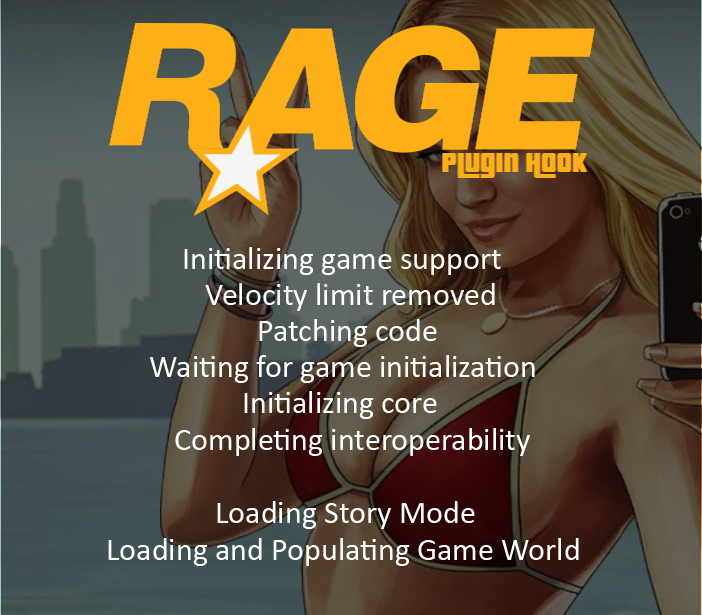
Unfortunately it still isn't working, I just did a clean install of both GTA V and LSPDFR (and the newest RageHook PH) and it still crashes on the initial GTAV loading screen, I attached the log. RagePluginHook.log For further clarity, this is where it's crashing, I also have a newer RPH log. RagePluginHook.log

-
Hi all, Very new to the community so hello! My game (even after I thought I had turned off automatic updates) updated itself, and now RageHook PH is unable to support that version (2842) and the supported game version is 2372. I updated the RageHook PH but unfortunately that latest version doesn't work with the new update. Other than patiently waiting for the RageHook update, is there anything I can do to revert back to a previous version e.g. 2732? As mentioned, I only downloaded and install GTAV yesterday so, I unfortunately do not have any backups. Thanks!