


ImBurni
Members
-
Joined
-
Last visited
Everything posted by ImBurni
-
Ich muss mich korrigieren! Es geht sorry für die falsche Info! Danke dir!
-
@NeulandInternet Danke dir erstmal für die Antwort. Habe beides gemacht , auch dies hat mein Problem leider nicht behoben 😞
-
Hi Chris! Bei mir steht alles auf High bei Qualität. Kommt durch den Screenshot nur so rüber. Dieses Verbleichen vom Blaulicht tritt auch nur auf, wenn ich nah am Fahrzeug bin, von weiter weg sieht man ja im Screenshot das da dass Blaulicht besser ausssieht.
-
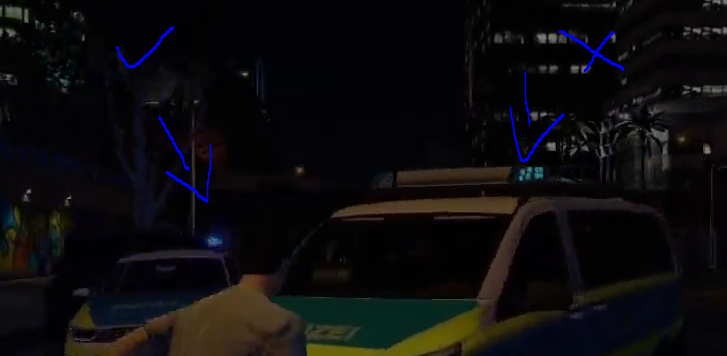
Hallo! Ich habe das Problem, das mein Blaulicht sobald ich nah dran gehe oder im Auto sitze total blass ist. Ich habe ELS , BetterELS, Radiance und wie sie alle heißen schon installiert und gestestet nichts hilft. Ich habe ne video aufnahme wo man es hoffentlich ein wenig erkennen kann. An den Autos liegt es auch nicht, das ist bei jeden Auto so, das Auto mit dem Haken zeigt, wie es aussehen sollte auch wenn man näher dran steht und bei den Vito sieht man den Unterschied wie es aussieht wenn ich nah dran bin, diese Blaulicht ( Licht ) effekte verschwinden einfach... Ich hoffe wir bekommen mein Problem behoben, ich würd mich soooo freuen! ❤️ Danke im Vorraus
-
Everytime i try to load via Ragehook Plugin the LSPDFR, it Crashed. Can anyone please help me? https://pastebin.com/2RbPiFN6

