Rash
Members
-
Joined
-
Last visited
Everything posted by Rash
-
I admit, I fixed this a while ago but I forgot to delete this post But yeah, it turns out that there was a / missing in "</Vehicle>" I was adding custom DLC cars into my agency.xml Thank you.
-
The Problem I recently updated my GTA V along with my LSPDFR, updated everything else (mods, asi, scripthook, etc) too, I then tried to load LSPDFR RPH hooks perfectly but after it loads, the "Loading LSPDFR (insert circle here)" screen flashes for 5 seconds and then immediately turns into this as displayed in the image below The circle keeps rolling, I waited an entire hour for it to load and it just stays like this No idea what's wrong, RPH log is below Note: I will absolutely not disable my mods, I tried that and it disabled all my mods without even fixing a single inch of the problem RagePluginHook.log

-
I actually fixed it. turns out that the euifl file was causing it not to load, so I deleted it and it now loads perfectly.
-
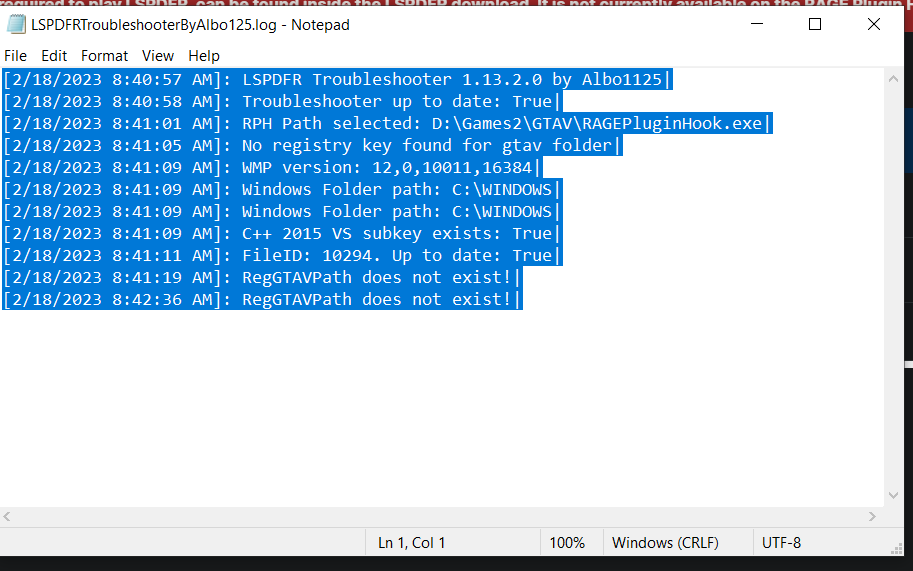
Note : I have no god damn idea how to add that registry because I don't know if there's a value in it or not
-
Hello! I reinstalled LSPDFR this month because I was having trouble launching GTA, It was working well until today. I noticed RPH won't launch even as administrator. I ran the Albo LSPDFR troubleshooter and it told me that a registry is missing. Log :