Vaskulis
Members
-
Joined
-
Last visited
Files posted by Vaskulis
-
Voice Menu
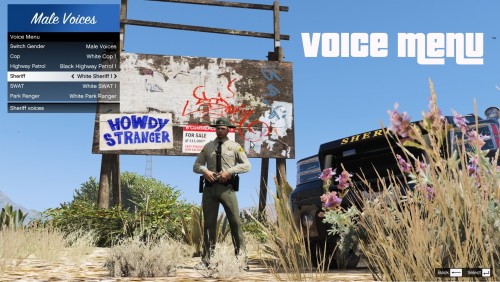
This plugin allows you to choose your character's voice from a menu that gets its data from an editable XML file. That's it.
Originally made for use with EUP it soon became obsolete with the release of EUP Menu.
Now with LSPDFR 0.4 including most of EUP Menu's functionality, it has some purpose again, as there's (apparently) no way to change your character's voice from the standard cop voice.
So for those of you who like using the MP Characters and want to hear the occasional "Inbred Dickwad!" when performing traffic stops, I bring you a new and improved version of this little plugin.
Enjoy!
To install, just drag and drop the contents of the zip archive into your GTA directory. In the game, press LCtrl+V to open the menu (can be changed in the INI file).
Help! The audio played when I arrest someone is still the standard LSPD voice!
I'm sorry but I don't know why LSPDFR doesn't use the character's voice for that particular line and instead seems to play a random line from a predefined selection of lines in the standard character voice.
In any case, that is something I can't do anything about and that will hopefully be changed in an upcoming LSPDFR update.
- 6,448 Downloads
- 12 Comments
Updated