
mua9800
Members
-
Joined
-
Last visited
Everything posted by mua9800
-
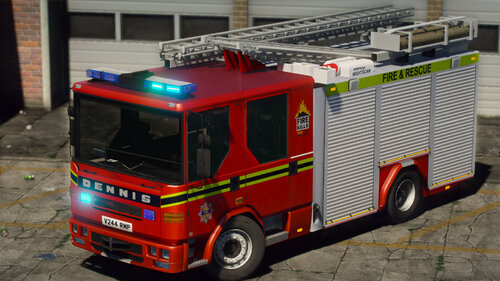 I had this issue myself, but after a little bit of messing around with some numbers in the handling data, I've managed to stop the fire appliance from tipping over. If you want to use my settings, paste this into the 'z=' part of your handling data: z='-0.950000' Hope this helps! P.s. I wouldn't recommend flying around corners because you will most likely understeer.
 -
 I've watched the tutorial that was attached to this install, and the ARU ball cap doesn't work? I've installed it to the right place and double checked the textures, etc but I only get a helmet? EDIT: Just copied the female baseball cap into where the male cap should be, problem solved.
- 49 comments
- 5 reviews
-
(I don’t normally post here) I’ve downloaded an ambulance pack and I want to add them as add on vehicles, in opposed to replacing things, as they’re named differently. For example, (this is a UK pack) the Helimed car is called v90.ytd. Does anyone know how I could do this?
-
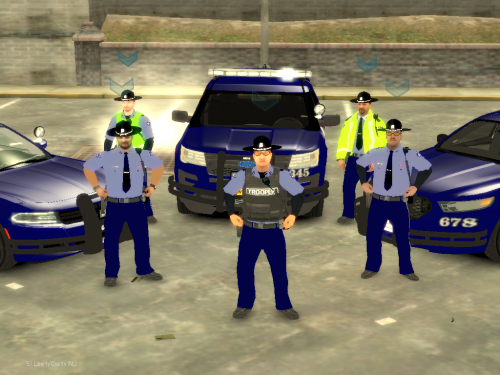 Hi, I know this may be a little late, but how does one install these vehicles? Is it a matter of Drag-and-Drop?