



BoasyToo
Members
-
Joined
-
Last visited
Everything posted by BoasyToo
-
Are you able to launch regular GTA okay?
-
Try to rename the folder to ''_mods'' and then try to see if the game works, if it does it's one of the mods you have installed causing the issue.
-
Do you have a mods folder?
-
I recommend following this video: Make sure you follow all steps, let us know if you still have the issue after that.
-
Does the whole game crash or do you get a ''LSPD First Response.dll stopped working'' error? Also, are you able to view the crash report? Your log has practically nothing in it unfortunately so can't check that.
-
Any key, just make sure it's not the same as another plugin otherwise it'll open both.
-
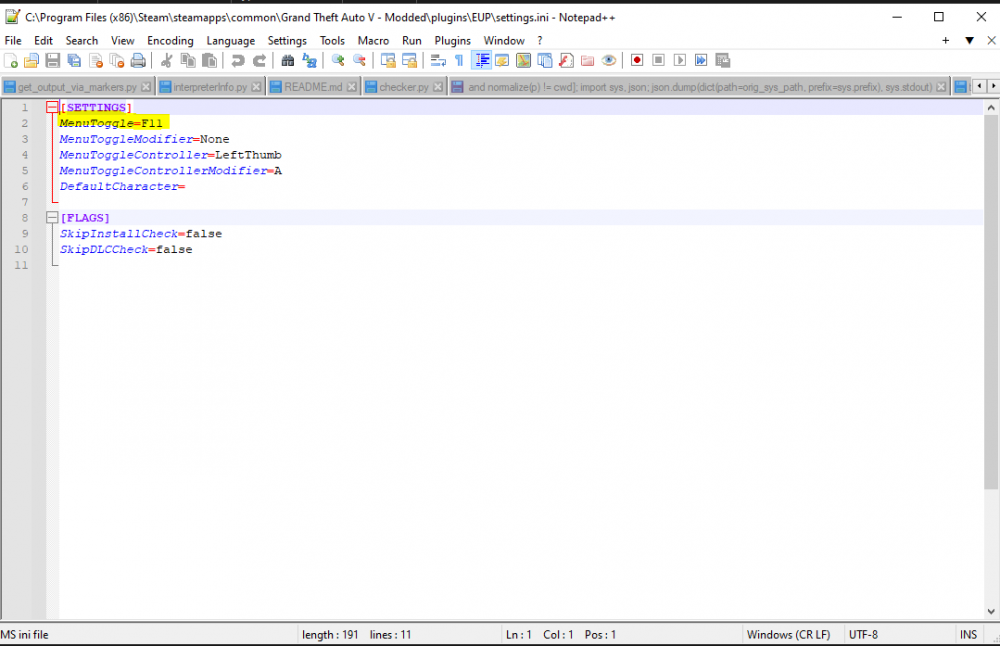
Yes there is, you do it in the config file, can be found as shown below. Edit here:

-
This doesn't seem like a LSPDFR issue but more so a GTA in general. Few things though; 1. You can find the download for RageNativeUI here: https://github.com/alexguirre/RAGENativeUI/releases As for the Plugin Timeout Threshold simply follow as it says in that screenshot. 2. Do you have a mods folder? Yes: Could you please rename the mods folder to ''_mods'' so that they do not load and see if that fixes the issue. No: Try the steps in ''1.'' to see if the issue is resolved. Let us know how it goes.

-
If you can run regular GTA fine then you should have no problems, however keep in mind that the more modifications/plugins you install the more likely it is to take a toll on performance so if you have a weaker set up don't over do it.
-
If you press F4, I think the command is LoadPLugin LSPDFirstResponse.dll then to load it. You can also use the command: ForceDuty to go on duty so you don't have to go into a station.
-
Does it happen often? You can always load the plugin again in the F4 command menu, it does happen that it crashes for me sometimes as well. Not sure if anyone else has any other ideas.
-
Strange, what type of crash is it? Do you get any error pop up when you crash?
-
What is the issue you are having? Is the game crashing while loading? Are you crashing when you go on duty? We need some more info to be able to help.
-
Hi, Your log seems to be fine with the plugins. Do you have a mods folder?
-
Best thing to do is renaming the mods folder as it could be a mod that is messing with it.
-
I never played vanilla LSPDFR so not sure how it was meant to be, but I recommend checking out: This definitely says it out loud if that's what you are looking for.
-
Hi please, provide a RagePlugin log so we can look into this.
-
As the above person said these plugins are an issue: Remove them and then see if it fixes the problem.

-
As the above person has stated, do you have a mods folder? If you do, try to rename it to ''_mods'' and try to launch the game, does this work? If, yes - You have a mod installed that is causing the crash. Additionally, as your game crashes before you load in the log shows little to no info, so could you advise if you have plugins installed? If so, which ones? Also, have you definitely installed LSPDFR correctly? I always recommend following this video: As that is what I followed when I first installed it. Let us know how it goes.
-
Amazing, happy to hear it! Enjoy! 🙂
-
Awesome! Enjoy! 🙂
-
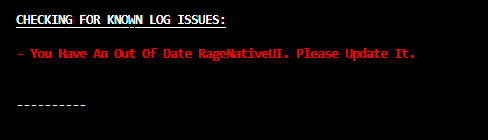
Hey buddy, This may be the issue: Download here: https://github.com/alexguirre/RAGENativeUI/releases Let me know if it fixes the issue.
-
Can you try disabling the mods folder and then seeing if it works? (To disable just rename the mods folder to anything else like ''_mods'')
-
Do you have any mods installed? / Do you have a mods folder?
-
I recommend following all the steps outlined in this video: It should work fine if things are followed properly. He also has videos on installing other plugins, I recommend trying this. Let us know how it goes.



