



BoasyToo
Members
-
Joined
-
Last visited
Everything posted by BoasyToo
-
Remove Callout Manager, I didn't notice it the first time. You can install Callout Interface instead:
-
Awesome! Seems like you have a mod installed that is causing the issue then. Hard to tell which.
-
Do you have a mods folder? If yes, rename it: _mods and try to launch and see if it still happens.
-
You watched and followed along to a 13min video in less than 3min?
-
Are you sure it's installed correctly, I recommend following this: To make sure you have everything needed installed and done so correctly.
-
Thank you, Remove the following: Traffic Policer (This has been replaced by StopThePed) PoliceSmartRadio (This is outdated and discontinued as per the plugins page) A replacement for this is Grammar Police: How to use Grammar Police and set it up you'll need to look up Youtube videos. I recommend a Youtuber named Benzo. Let me know if still having the issue after doing this.
-
Your log sadly doesn't show me much information, do you have many plugins installed? If so, can you send a screenshot of what you have?
-
Try to rename it to ''_mods'' which will disable them and then try to see if the issue is still happening.
-
As DarkVypr said, install the plugin Stop the Ped. Here's an hour long that goes through everything you need to know:
-
Sweet! 🙂 Enjoy gaming.
-
And it's still broken? Do you have a mods folder?
-
My friend are you use your computer can run GTA in general?
-
Hey bud, Also, make sure you have RageNativeUI.dll installed; https://github.com/alexguirre/RAGENativeUI/releases Let us know if still having issues after sorting these.

-
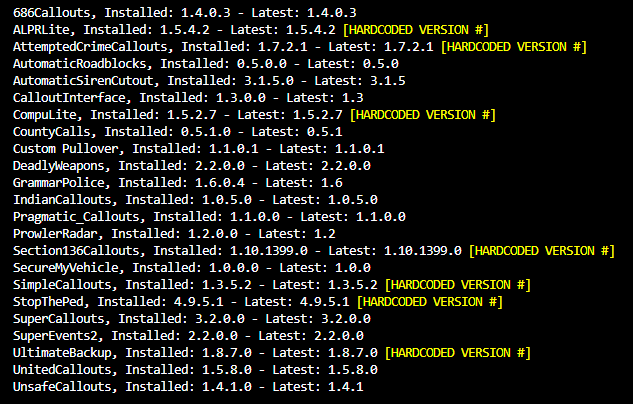
Hey mate, These are all the plugins I have installed that are giving me no issues currently: It's very hard to say which ones exactly you shouldn't install, sometimes it's trial and error but like I said, the ones I have installed currently do not give me any problems.
-
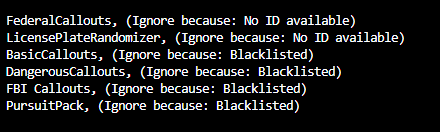
I have no idea what you said, so I will use Google Translate to respond. -- Ich habe keine Ahnung, was Sie gesagt haben, also werde ich Google Translate verwenden, um zu antworten. Das musst du entfernen: Stellen Sie außerdem sicher, dass Sie Folgendes installiert und auf dem neuesten Stand haben: https://github.com/alexguirre/RAGENativeUI/releases Hoffe das hilft

-
Hey mate, Do you have RageNativeUI installed and up to date? https://github.com/alexguirre/RAGENativeUI/releases
-
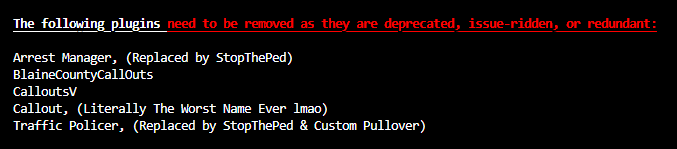
So, hopefully this will do it, you need to get rid of all these: I recommend installing StopThePed to replace them as per the screenshot as well as Custom Pullover. See if that sorts the problem.
-
Do you have RageNativeUI.dll installed and up to date? https://github.com/alexguirre/RAGENativeUI/releases
-
Can you send in your RagePlugin log?
-
I'd recommend following this video: To make sure you installed everything correctly.
-
Hey mah dude, I recommend following this video: I installed it following the video and have had many people on this forum in the last few days have success too, if you encounter any issues feel free to ask.
-
I'm out of ideas sadly, might have to do a fresh install. @DarkVypr any ideas?
-
So, in your log you need to update this: Also, do you have RAGENativeUI.dll installed and the most recent version? You can find the newest version here: https://github.com/alexguirre/RAGENativeUI/releases

-
Are you sure it's installed properly? I recommend following this:
-
It has to be mods then, something is broken. Try to verify file integrity for the game.



