AlexInATuxedo
Members
-
Joined
-
Last visited
Files posted by AlexInATuxedo
-
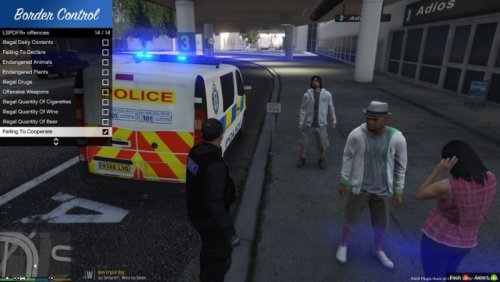
Standard British Border Control Offenses!
All of the offenses can be found in the .xml file. You can edit, add and change whatever you feel in the .xml file.
Requirements:
(1) - LSPDFR+ by Albo1125 (not required)
(2) - LSPDFR (all versions)
- A text document within the .rar file will help you install the offenses if you're having troubles.
ATTACHED BELOW IS AN IMAGE OF THE OFFENSES!!
- 171 Downloads
- 1 Comments
Updated -
This file includes:
Possession Of A Weapon
Public Order Offence(Swearing)
False Identification
Domestic Violence
Protesting
Failing To Stop
Stealing
Public Disturbance
Smoking In A Public Area
Failing To Dispose Dog Poo
Bodily Exposure
Possession Of Cannabis
Litter
LSPDFR+ IS NOT REQUIRED ANYMORE, BUT IT STILL WORKS!!
- Download from here: http://www.lcpdfr.com/files/file/11930-lspdfr-improved-pursuit-ai-better-traffic-stops-court-system-statistics-more/
- You may also edit the .xml and add your own custom offenses as you please.
- 251 Downloads
- 4 Comments
Updated -
Standard British Traffic Offenses!
All of the offenses can be found in the .xml file. You can edit, add and change whatever you feel in the .xml file.
Requirements:
(1) - LSPDFR+ by Albo1125 (not required anymore)
(2) - LSPDFR (all versions)
- A text document within the .zip file will help you install the offenses if you're having troubles.
ATTACHED BELOW IS AN IMAGE OF THE OFFENSES!!
- 237 Downloads
Updated -
Smoother Gameplay
===========================================
This .bat file allows your game to run at a 10-15+ fps advantage.
EVERYONE READ:
1. How to make it work: Download this .zip file, open it and drag the launcher.bat file to your desktop. Once you have completed everything below this, double click and wait.
2. This .bat file increase your game's frames by at least 15fps. For it to work, you need to go into your Grand Theft Auto main directory, find the application for RAGEPluginHook, and right click and "send-to desktop." Once it has been sent to your desktop, you need to rename the shortcut by getting rid of "shortcut" and just have it named like this: RAGEPluginHook. If you'd like to rename the shortcut something else, just right click on the .bat file, press edit and change the name beside the "start" line to whatever the shortcut's name is. (refrain from any spaces)
3. Once you double click the .bat file, it will launch RagePluginHook in high priority, meaning it will run at an advantage compared to everything else. Once RagePluginHook has started, wmic (TASK MANAGER,) will make the two processes (gtavlauncher and the sub process - and make them idle) meaning it will make it so these two processes aren't taking up any more CPU time or memory, because the GTA V Launcher itself takes up more CPU than the game itself. (Because it is a huge application for any PC to start up, and the Sub Process just hogs up more CPU and Memory.)
4. (Additional Notes) - If you'd like, which was kind of explained above, you can edit the .bat file. You can get rid of the "timeout 60" if you'd prefer, or just lower it. The timeout is there just in case you are busy and can't press "enter" right away. It gives you 60 seconds before it kills the process and you must double click it again.
THERE IS AN IMAGE BELOW FOR REFERENCE!!
BELOW IS AN IMAGE OF THE NEWER VERSION!!
- 1,749 Downloads
- 13 Comments
Updated


.thumb.jpg.ddfc42c508f09d5cabed93dba057ed81.jpg)