


bomazilla
Members
-
Joined
-
Last visited
Everything posted by bomazilla
-
Can't wait!
-
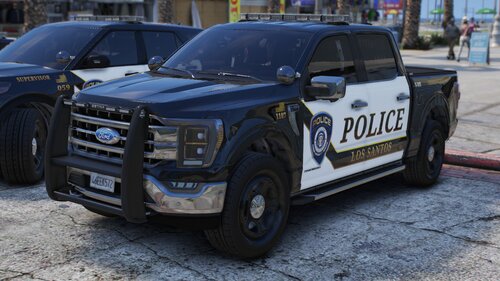 Love the pack. However, after I downloaded it my game kept crashing before starting. I found out that the handling ID for police2 was listed as "GRESELY" instead of "GRESLEY" (it is spelled correctly for police3). After fixing the spelling, the game loaded correctly and I was able to use the pack, which looks awesome!
 -
Thanks. I just got it working. So I could load into GTA Online, but not story mode. So I did Online and created a character then switched to a story mode character and it loaded with no issues. Perhaps someone else could find that helpful!
-
Yeah, everything I saw suggested a dozen things with the last always being to uninstall and reinstall the game as a last resort. Well, I tried all the options and ended up where I am now. I appreciate your help, I saw a lot of your comments on other threads like this one and tried the fixes you suggested to no avail.
-
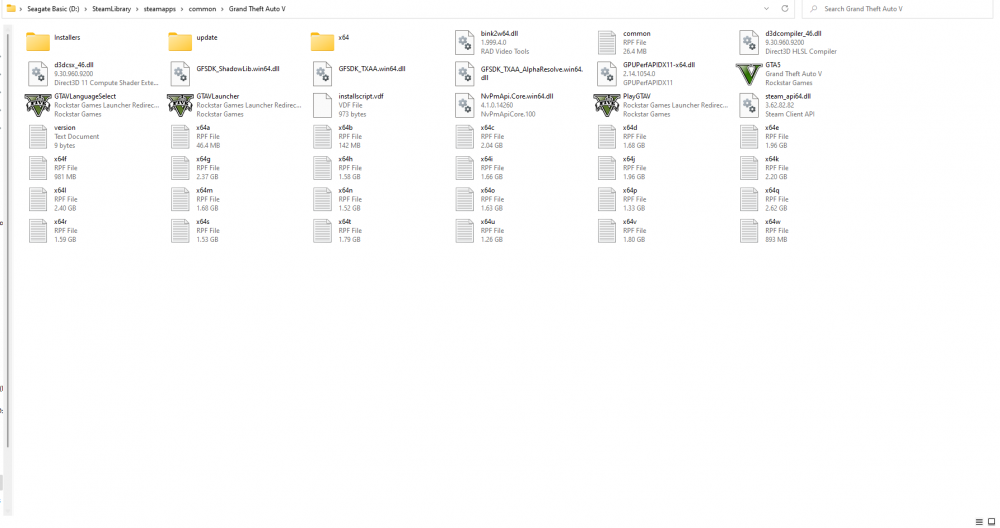
Here it is, odd view because I zoomed out to show it all.
-
As the title says, I am dealing with the infinite loading screen glitch. I tried just about every fix I could find, and none of them seemed to work. Totally uninstalled GTAV and all mods (and OpenIV), and I am now just trying to get story mode to load before I begin downloading mods again. However, I am still dealing with the infinite loading screen. Frankly, I am losing hope. Had no issues prior to the update although I am new to modding. Need all the help I can get at the moment.

